 Web
Web
 Windows /
 Mac
Mac

Update your devices effortlessly with Brook’s new web firmware tool.
Update
Tips >
Tips >
Product
User Guide
Firmware
Version
Date
Description
All Versions
 Gen-5 wireless Fighting Board


★★ Please install the following drivers before running the updater ★★
https://drive.google.com/file/d/1IQIOEwDlq9oLwnc-7-vAqMYixlooWgUr/view?usp=drive_link
★★ GEN-5W Firmware update tutorial ★★
https://drive.google.com/file/d/1ad_j-2RRIreG4mJ44JNZhVnu9RUry7Sr/view?usp=drive_link
-------------V14_20260112 -----------
1.Fixed SOCD switching issue
https://drive.google.com/file/d/1IQIOEwDlq9oLwnc-7-vAqMYixlooWgUr/view?usp=drive_link
★★ GEN-5W Firmware update tutorial ★★
https://drive.google.com/file/d/1ad_j-2RRIreG4mJ44JNZhVnu9RUry7Sr/view?usp=drive_link
-------------V14_20260112 -----------
1.Fixed SOCD switching issue
 Gen-5 mini Fighting Board
★★ Please update the firmware with Google Chrome ★★
---------V1.2.2.0 BETA_20251015 ---------
1. For competitive gaming, controllers should not have two buttons with the same output function. It would be desirable to be able to select either the Share or TP Key button in X-Input mode to function as the Back key.
To switch:
Press the TP key and plug in the USB cable: Subsequently, when logging into the PC in X-Input Mode, the TP key will function as the Back key (the Share key will have no function).
Press the Share key and plug in the USB cable: Subsequently, when logging into the PC in X-Input Mode, the Share key will function as the Back key (the TP key will have no function).
2. Added a new LCD display mode switch:
Share key + LEFT key: Stick panel display
Share key + RIGHT key: All button panel display
3.Fix compatibility issue with the latest PS5 system update.
---------V1.2.2.0 BETA_20251015 ---------
1. For competitive gaming, controllers should not have two buttons with the same output function. It would be desirable to be able to select either the Share or TP Key button in X-Input mode to function as the Back key.
To switch:
Press the TP key and plug in the USB cable: Subsequently, when logging into the PC in X-Input Mode, the TP key will function as the Back key (the Share key will have no function).
Press the Share key and plug in the USB cable: Subsequently, when logging into the PC in X-Input Mode, the Share key will function as the Back key (the TP key will have no function).
2. Added a new LCD display mode switch:
Share key + LEFT key: Stick panel display
Share key + RIGHT key: All button panel display
3.Fix compatibility issue with the latest PS5 system update.
 Gen-5 Fighting Board
★★ Please update the firmware with Google Chrome ★★
---------V1.2.2.0 BETA_20251015 ---------
1. For competitive gaming, controllers should not have two buttons with the same output function. It would be desirable to be able to select either the Share or TP Key button in X-Input mode to function as the Back key.
To switch:
Press the TP key and plug in the USB cable: Subsequently, when logging into the PC in X-Input Mode, the TP key will function as the Back key (the Share key will have no function).
Press the Share key and plug in the USB cable: Subsequently, when logging into the PC in X-Input Mode, the Share key will function as the Back key (the TP key will have no function).
2. Added a new LCD display mode switch:
Share key + LEFT key: Stick panel display
Share key + RIGHT key: All button panel display
3.Fix compatibility issue with the latest PS5 system update.
---------V1.2.2.0 BETA_20251015 ---------
1. For competitive gaming, controllers should not have two buttons with the same output function. It would be desirable to be able to select either the Share or TP Key button in X-Input mode to function as the Back key.
To switch:
Press the TP key and plug in the USB cable: Subsequently, when logging into the PC in X-Input Mode, the TP key will function as the Back key (the Share key will have no function).
Press the Share key and plug in the USB cable: Subsequently, when logging into the PC in X-Input Mode, the Share key will function as the Back key (the TP key will have no function).
2. Added a new LCD display mode switch:
Share key + LEFT key: Stick panel display
Share key + RIGHT key: All button panel display
3.Fix compatibility issue with the latest PS5 system update.
 Brook Fighter Starburst
★★ From FW V1.3.0.0, The Default RGB style must be set by the Fighting Board Center ★★
Fighting Board Center download: https://www.brookaccessory.com/download/Setting_Tools/
-------------V1.3.0.0Beta_20260507 -----------
This update officially introduces support for the Fighting Board Center software and optimizes the default RGB lighting behavior.
1. Fighting Board Center Support
Button Remapping: Freely configure your button layout for the ultimate competitive edge.
RGB LED Customization: Adjust lighting colors and dynamic effects to match your style.
2. New RGB Lighting Preset Cycle
The lighting cycle sequence has been updated (Marquee is now the default):
Marquee (L to R, Default) → Marquee (R to L) → All Off → Turn Off on Press → Turn On on Press → Breathing
⚠️ Important Notice:
Please ensure your device is switched to PC Mode before launching Fighting Board Center to ensure the device is correctly detected.
Fighting Board Center download: https://www.brookaccessory.com/download/Setting_Tools/
-------------V1.3.0.0Beta_20260507 -----------
This update officially introduces support for the Fighting Board Center software and optimizes the default RGB lighting behavior.
1. Fighting Board Center Support
Button Remapping: Freely configure your button layout for the ultimate competitive edge.
RGB LED Customization: Adjust lighting colors and dynamic effects to match your style.
2. New RGB Lighting Preset Cycle
The lighting cycle sequence has been updated (Marquee is now the default):
Marquee (L to R, Default) → Marquee (R to L) → All Off → Turn Off on Press → Turn On on Press → Breathing
⚠️ Important Notice:
Please ensure your device is switched to PC Mode before launching Fighting Board Center to ensure the device is correctly detected.
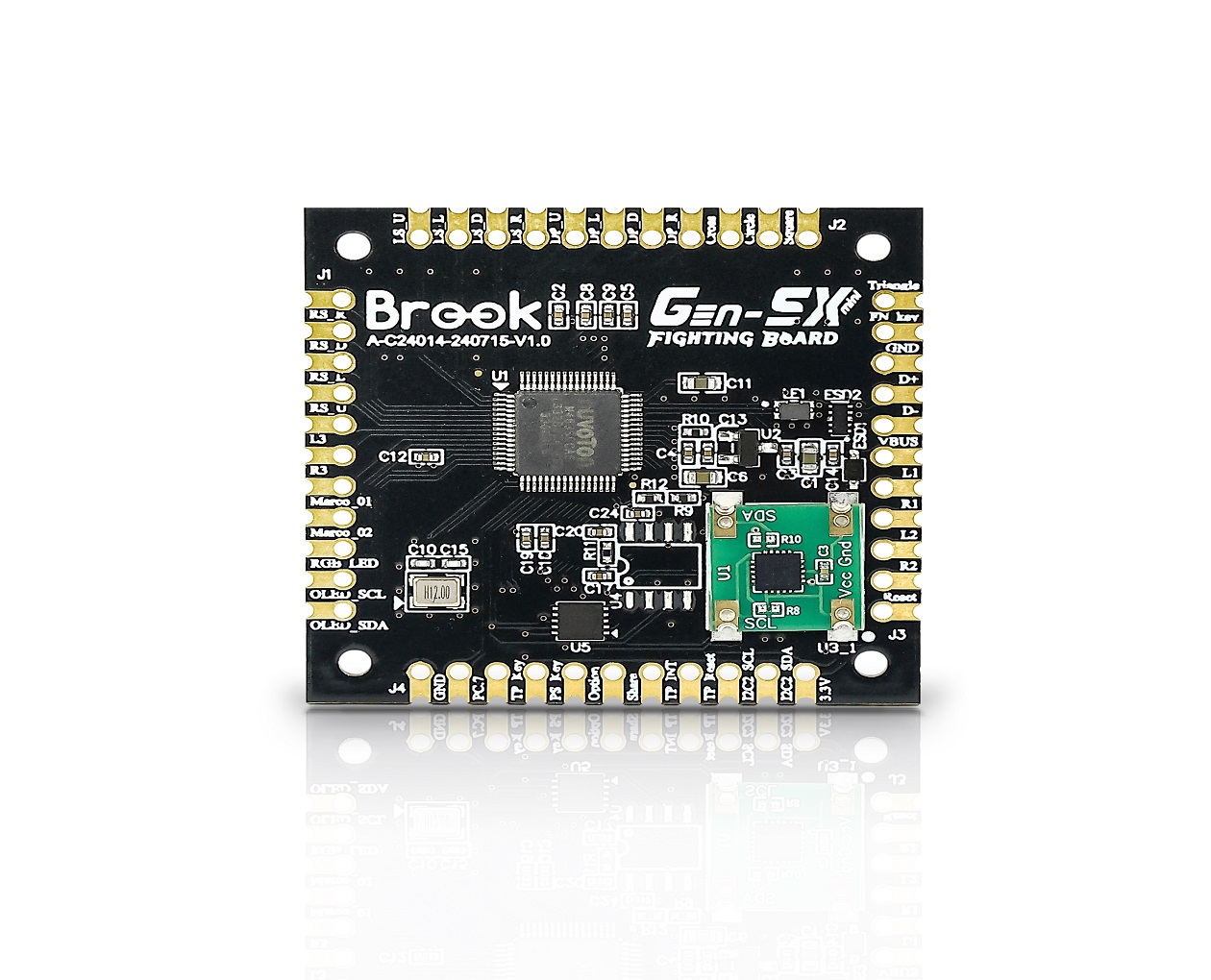 Gen-5X mini Fighting Board
★★ Please update the firmware with Google Chrome ★★
---------V1.6.2.0 BETA_20251015 ---------
1. For competitive gaming, controllers should not have two buttons with the same output function. It would be desirable to be able to select either the Share or TP Key button in X-Input mode to function as the Back key.
To switch:
Press the TP key and plug in the USB cable: Subsequently, when logging into the PC in X-Input Mode, the TP key will function as the Back key (the Share key will have no function).
Press the Share key and plug in the USB cable: Subsequently, when logging into the PC in X-Input Mode, the Share key will function as the Back key (the TP key will have no function).
2. Added a new LCD display mode switch:
Share key + LEFT key: Stick panel display
Share key + RIGHT key: All button panel display
3.Fix compatibility issue with the latest PS5 system update.
---------V1.6.2.0 BETA_20251015 ---------
1. For competitive gaming, controllers should not have two buttons with the same output function. It would be desirable to be able to select either the Share or TP Key button in X-Input mode to function as the Back key.
To switch:
Press the TP key and plug in the USB cable: Subsequently, when logging into the PC in X-Input Mode, the TP key will function as the Back key (the Share key will have no function).
Press the Share key and plug in the USB cable: Subsequently, when logging into the PC in X-Input Mode, the Share key will function as the Back key (the TP key will have no function).
2. Added a new LCD display mode switch:
Share key + LEFT key: Stick panel display
Share key + RIGHT key: All button panel display
3.Fix compatibility issue with the latest PS5 system update.
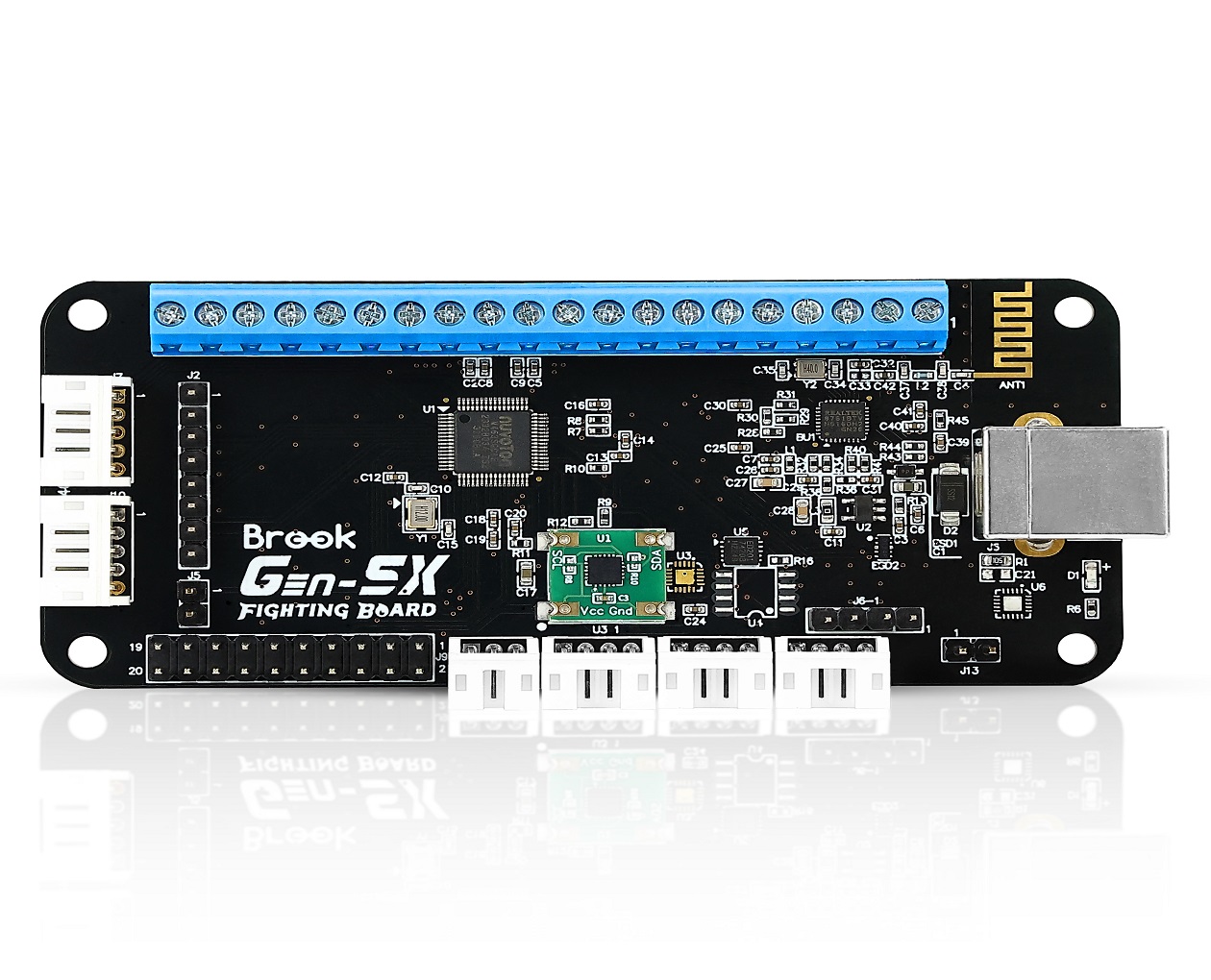 Gen-5X Fighting Board
★★ Please update the firmware with Google Chrome ★★
---------V1.6.2.0 BETA_20251015 ---------
1. For competitive gaming, controllers should not have two buttons with the same output function. It would be desirable to be able to select either the Share or TP Key button in X-Input mode to function as the Back key.
To switch:
Press the TP key and plug in the USB cable: Subsequently, when logging into the PC in X-Input Mode, the TP key will function as the Back key (the Share key will have no function).
Press the Share key and plug in the USB cable: Subsequently, when logging into the PC in X-Input Mode, the Share key will function as the Back key (the TP key will have no function).
2. Added a new LCD display mode switch:
Share key + LEFT key: Stick panel display
Share key + RIGHT key: All button panel display
3.Fix compatibility issue with the latest PS5 system update.
---------V1.6.2.0 BETA_20251015 ---------
1. For competitive gaming, controllers should not have two buttons with the same output function. It would be desirable to be able to select either the Share or TP Key button in X-Input mode to function as the Back key.
To switch:
Press the TP key and plug in the USB cable: Subsequently, when logging into the PC in X-Input Mode, the TP key will function as the Back key (the Share key will have no function).
Press the Share key and plug in the USB cable: Subsequently, when logging into the PC in X-Input Mode, the Share key will function as the Back key (the TP key will have no function).
2. Added a new LCD display mode switch:
Share key + LEFT key: Stick panel display
Share key + RIGHT key: All button panel display
3.Fix compatibility issue with the latest PS5 system update.
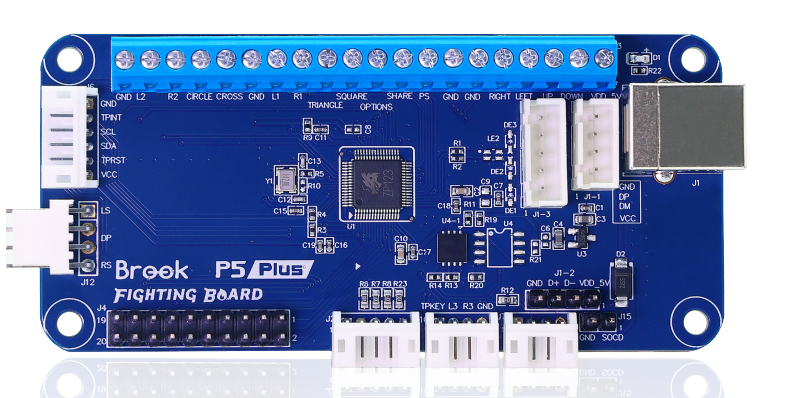 P5 PLUS Fighting Board
----------V1.4-2024-03-25--------
1. Optimize connection stability
1. Optimize connection stability
 P5 mini Fighting Board
----------V1.4-2024-03-25--------
1. Optimize connection stability
1. Optimize connection stability
 UFB-UP5
  Universal Fighting Board Fusion
----------V4.1.0 M1-ONLINE-2024-02-07--------
1. Optimization of connectivity.
2. Turbo function changed to 30 Hit/Sec
1. Optimization of connectivity.
2. Turbo function changed to 30 Hit/Sec
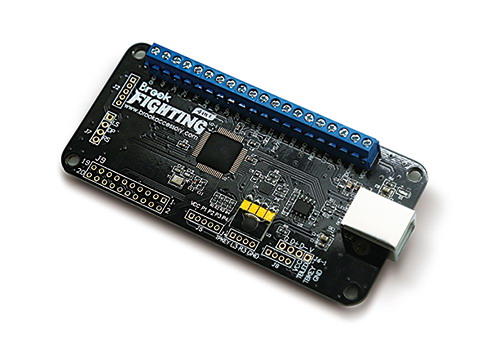 Universal Fighting Board
【Due to different hardware versions, there are variations in firmware versions, and the system will automatically identify the appropriate update version.】
----------V4.1.0 M1-ONLINE-2024-02-07--------
1. Optimization of connectivity.
2. Turbo function changed to 30 Hit/Sec
----------V4.1.0 M1-ONLINE-2024-02-07--------
1. Optimization of connectivity.
2. Turbo function changed to 30 Hit/Sec
Universal Fighting Board M2 (Tournament)
!!!This firmware version is suitable for Model No. 【A-C21035-210721-V1.0(NEW)】!!!
Please check the back of the UFB.
----------V3.0-ONLINE-20210809--------
1. Support Brook UFB-UP5
The way to connect the pin for SOCD has changed as the followings
Open J2_1、J2_2: (Mode 1)Current SOCD
Short J2_1、J2_2: (Mode 2)New SOCD, second-input priority. ie: (← + → = →),(→ + ← = ←)
Please check the back of the UFB.
----------V3.0-ONLINE-20210809--------
1. Support Brook UFB-UP5
The way to connect the pin for SOCD has changed as the followings
Open J2_1、J2_2: (Mode 1)Current SOCD
Short J2_1、J2_2: (Mode 2)New SOCD, second-input priority. ie: (← + → = →),(→ + ← = ←)
 XB Fighting Board
-------------V1.9.0_2024-02-07-----------
1. Optimizing connectivity
1. Optimizing connectivity
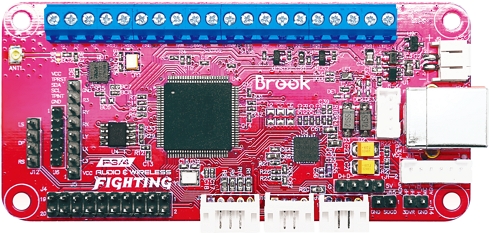 Wireless Fighting Board
-------------V1.7_2023-11-22-----------
1. New functions in PC wireless X-input mode
Battery display: Press the PS button to display the remaining battery power through the PLAYER LED lights (4 lights are full, 1 light is low)
2. Memorize manual switching of console mode and SOCD mode
3. Change the SOCD mode switching method:
Press and hold the following D-Pad and plug in a game console to switch SOCD mode:
← = Mode1 Up priority
←+→=null →+←=null ↑+↓=↑ ↓+↑=↑
↑ = Mode2 Capcom Tournament Edition
←+→=null →+←=null ↑+↓=null ↓+↑=null
↓ = Mode3 Second-Input priority
←+→=→ →+←=← ↑+↓=↓ ↓+↑=↑
→ = Mode4 Bypass
←+→=←+→ →+←=→+← ↑+↓=↑+↓ ↓+↑=↓+↑
1. New functions in PC wireless X-input mode
Battery display: Press the PS button to display the remaining battery power through the PLAYER LED lights (4 lights are full, 1 light is low)
2. Memorize manual switching of console mode and SOCD mode
3. Change the SOCD mode switching method:
Press and hold the following D-Pad and plug in a game console to switch SOCD mode:
← = Mode1 Up priority
←+→=null →+←=null ↑+↓=↑ ↓+↑=↑
↑ = Mode2 Capcom Tournament Edition
←+→=null →+←=null ↑+↓=null ↓+↑=null
↓ = Mode3 Second-Input priority
←+→=→ →+←=← ↑+↓=↓ ↓+↑=↑
→ = Mode4 Bypass
←+→=←+→ →+←=→+← ↑+↓=↑+↓ ↓+↑=↓+↑
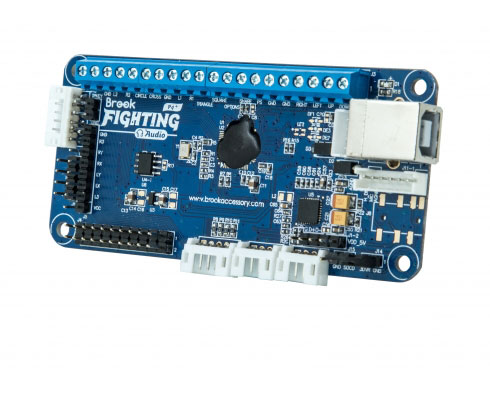 PS4+ Audio Fighting Board
-------------V2.1 2023-11-21-----------
1. Memorize manual switching of SOCD mode
2. Change the SOCD mode switching method:
Press and hold the following D-Pad and plug in a game console to switch SOCD mode:
← = Mode1 Up priority
←+→=null →+←=null ↑+↓=↑ ↓+↑=↑
↑ = Mode2 Capcom Tournament Edition
←+→=null →+←=null ↑+↓=null ↓+↑=null
↓ = Mode3 Second-Input priority
←+→=→ →+←=← ↑+↓=↓ ↓+↑=↑
→ = Mode4 Bypass
←+→=←+→ →+←=→+← ↑+↓=↑+↓ ↓+↑=↓+↑
1. Memorize manual switching of SOCD mode
2. Change the SOCD mode switching method:
Press and hold the following D-Pad and plug in a game console to switch SOCD mode:
← = Mode1 Up priority
←+→=null →+←=null ↑+↓=↑ ↓+↑=↑
↑ = Mode2 Capcom Tournament Edition
←+→=null →+←=null ↑+↓=null ↓+↑=null
↓ = Mode3 Second-Input priority
←+→=→ →+←=← ↑+↓=↓ ↓+↑=↑
→ = Mode4 Bypass
←+→=←+→ →+←=→+← ↑+↓=↑+↓ ↓+↑=↓+↑
 Zero-Pi/Zero-Pi EASY Fighting Board
-------------V1.3 2023-11-21-----------
1. Memorize manual switching of console mode and SOCD mode
2. Add to support Mac OS
- Hold down 3P button and then plug USB cable to Mac.
3. Change the SOCD mode switching method:
Press and hold the following D-Pad and plug in a game console to switch SOCD mode:
← = Mode1 Up priority
←+→=null →+←=null ↑+↓=↑ ↓+↑=↑
↑ = Mode2 Capcom Tournament Edition
←+→=null →+←=null ↑+↓=null ↓+↑=null
↓ = Mode3 Second-Input priority
←+→=→ →+←=← ↑+↓=↓ ↓+↑=↑
→ = Mode4 Bypass
←+→=←+→ →+←=→+← ↑+↓=↑+↓ ↓+↑=↓+↑
1. Memorize manual switching of console mode and SOCD mode
2. Add to support Mac OS
- Hold down 3P button and then plug USB cable to Mac.
3. Change the SOCD mode switching method:
Press and hold the following D-Pad and plug in a game console to switch SOCD mode:
← = Mode1 Up priority
←+→=null →+←=null ↑+↓=↑ ↓+↑=↑
↑ = Mode2 Capcom Tournament Edition
←+→=null →+←=null ↑+↓=null ↓+↑=null
↓ = Mode3 Second-Input priority
←+→=→ →+←=← ↑+↓=↓ ↓+↑=↑
→ = Mode4 Bypass
←+→=←+→ →+←=→+← ↑+↓=↑+↓ ↓+↑=↓+↑
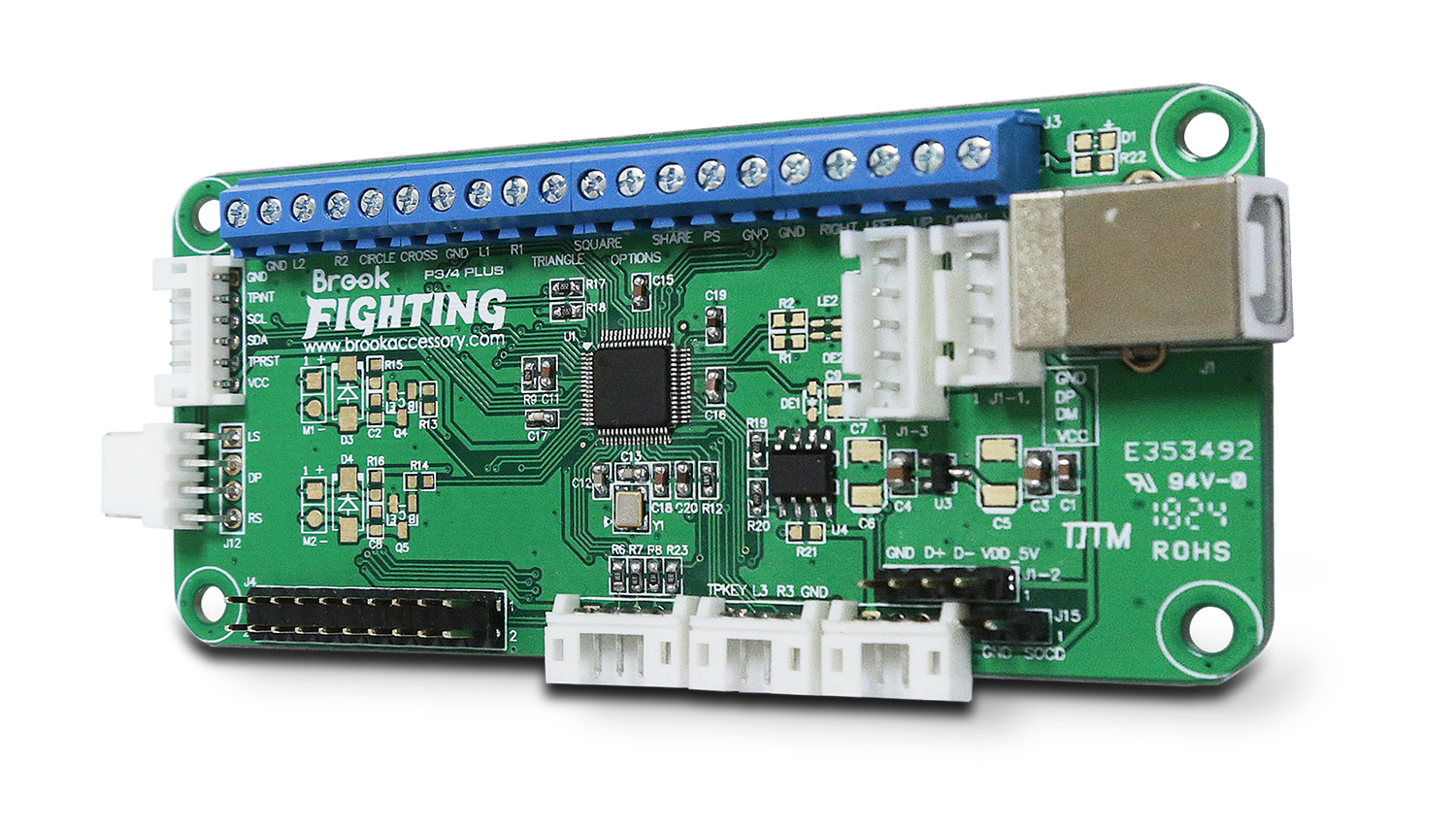 PS3/PS4 Fighting Board Mini / Plus
----------V1.7 2023-11-21--------
Change the SOCD mode switching method:
Press and hold the following D-Pad and plug in a game console to switch SOCD mode:
← = Mode1 Up priority
←+→=null →+←=null ↑+↓=↑ ↓+↑=↑
↑ = Mode2 Capcom Tournament Edition
←+→=null →+←=null ↑+↓=null ↓+↑=null
↓ = Mode3 Second-Input priority
←+→=→ →+←=← ↑+↓=↓ ↓+↑=↑
→ = Mode4 Bypass
←+→=←+→ →+←=→+← ↑+↓=↑+↓ ↓+↑=↓+↑
Change the SOCD mode switching method:
Press and hold the following D-Pad and plug in a game console to switch SOCD mode:
← = Mode1 Up priority
←+→=null →+←=null ↑+↓=↑ ↓+↑=↑
↑ = Mode2 Capcom Tournament Edition
←+→=null →+←=null ↑+↓=null ↓+↑=null
↓ = Mode3 Second-Input priority
←+→=→ →+←=← ↑+↓=↓ ↓+↑=↑
→ = Mode4 Bypass
←+→=←+→ →+←=→+← ↑+↓=↑+↓ ↓+↑=↓+↑
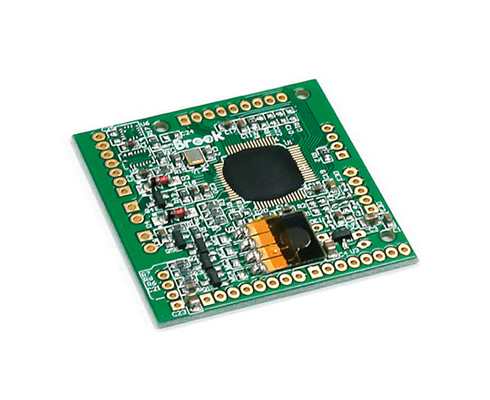 PS3/PS4 Fighting Board Mini M1 (Tournament)
!!!This firmware version is suitable for Model No. 【B-C15040-190430-V1.0】!!!
Please check the Model No. of the PS3PS4 Fighting Board Mini.
----------V2.4-20230330--------
1. Add Tournament Mode
Please check the Model No. of the PS3PS4 Fighting Board Mini.
----------V2.4-20230330--------
1. Add Tournament Mode
 Retro board
20230704
1. Fixed automatic judgment of SFC mode.
2. Manual Mode Support: N64
- Hold down 4K button and then plug USB cable to console。
3. Auto Detect Console Mode Support:
- Hold down Select button and then plug USB cable to console。
1. Fixed automatic judgment of SFC mode.
2. Manual Mode Support: N64
- Hold down 4K button and then plug USB cable to console。
3. Auto Detect Console Mode Support:
- Hold down Select button and then plug USB cable to console。
Retro board (JP)
20230704
1. Fixed automatic judgment of SFC mode.
2. Manual Mode Support: N64
- Hold down 4K button and then plug USB cable to console。
3. Auto Detect Console Mode Support:
- Hold down Select button and then plug USB cable to console。
20220630
1. Add to support Nintendo 64
2. Remove Turbo function
1. Fixed automatic judgment of SFC mode.
2. Manual Mode Support: N64
- Hold down 4K button and then plug USB cable to console。
3. Auto Detect Console Mode Support:
- Hold down Select button and then plug USB cable to console。
20220630
1. Add to support Nintendo 64
2. Remove Turbo function

3F., No.121, Jian 8th Rd., Zhonghe Dist., New Taipei City 23585, Taiwan
Tel: +886-2-6620-2225 #361|Fax: +886-2-6620-2226|Business Hours: 10:00 AM to 6:00 PM (GMT+8)
Copyright © Zeroplus Technology Co., Ltd. All Rights Reserved. Brook is the registered trademark of Zeroplus Technology Co., Ltd.