-
Q1.Firmware Update - Vivid Controller
Q: I don’t know how to do firmware update, how can I do?
A: There’s firmware update guide for you to download and read.
You can download it from Brook’s official website.
Go to “Support è Download”
Brook’s official website download page: http://www.brookaccessory.com/download/
Q : I have some problem with firmware update.
A : Should you have any problem, please try the troubleshooting methods as below :
- Disconnect, reconnect and retry
- Switch another USB port and retry
- Use another PC and retry
- Restart PC and retry
- Restart firmware and retry
- Use another controller and retry
- Shorten cable length/Use another cable and retry
- Make sure you download the correct file
- If you have installed ZeroPlus Driver before, remove it and retry
- Disable antivirus and retry
- Run the program as administrator
If you have tried all the methods above and your problem still exists, log on to Brook’s official website, go to “Contact us” for assistance.
Q : Do I need to do firmware update if there's new release ?
A : As long as you can use the converter without any problem, you don't have to do firmware update.
Q : What should I pay attention to for firmware update ?
A:
- Firmware update must be done on a PC, it cannot be done on a console.
- Operate it on desktop PC. For laptop, please connect your laptop to power supply.
- Do it on Windows 7(and above) or Mac.
- Disable antivirus when operating.
- Don’t remove the converter while update is running.
- Make sure the PC has smooth internet stream
-
Q2.Firmware Update - Mars Wired Controller
Q: I don’t know how to do firmware update, how can I do?
A: There’s firmware update guide for you to download and read.
You can download it from Brook’s official website.
Go to “Support è Download”
Brook’s official website download page: http://www.brookaccessory.com/download/
Q : I have some problem with firmware update.
A : Should you have any problem, please try the troubleshooting methods as below :
- Disconnect, reconnect and retry
- Switch another USB port and retry
- Use another PC and retry
- Restart PC and retry
- Restart firmware and retry
- Use another controller and retry
- Shorten cable length/Use another cable and retry
- Make sure you download the correct file
- If you have installed ZeroPlus Driver before, remove it and retry
- Disable antivirus and retry
- Run the program as administrator
If you have tried all the methods above and your problem still exists, log on to Brook’s official website, go to “Contact us” for assistance.
Q : Do I need to do firmware update if there's new release ?
A : As long as you can use the converter without any problem, you don't have to do firmware update.
Q : What should I pay attention to for firmware update ?
A:
- Firmware update must be done on a PC, it cannot be done on a console.
- Operate it on desktop PC. For laptop, please connect your laptop to power supply.
- Do it on Windows 7(and above) or Mac.
- Disable antivirus when operating.
- Don’t remove the converter while update is running.
- Make sure the PC has smooth internet stream
-
Q3.Defective - Vivid Controller
Q : My controller used to work perfectly, but now it doesn’t seem to work anymore, it seems to be defective.
A:
- Please make sure you have followed firmware update guide to do firmware update first.
- Check if there's any change to your gamimg environment.
- Contact your original place of purchase for assistance.
- For further assistance, please log on to Brook's official website, go to“Contact us", and leave your message, we will contact you soon.
-
Q4.Defective - Mars Wired Controller
Q : My controller used to work perfectly, but now it doesn’t seem to work anymore, it seems to be defective.
A:
- Please make sure you have followed firmware update guide to do firmware update first.
- Check if there's any change to your gamimg environment.
- Contact your original place of purchase for assistance.
- For further assistance, please log on to Brook's official website, go to“Contact us", and leave your message, we will contact you soon.
-
Q5.Other Technical Questions - Vivid Controller
Q : I can't make it work on Switch, what can I do?
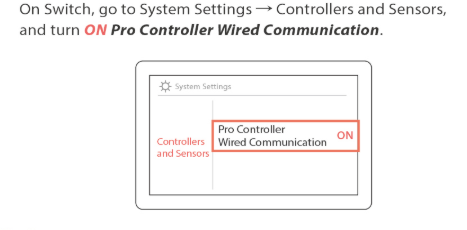
A : Before you connect the controller to the Switch dock, make sure you have turned on "Pro Controller Wired Communication" in System Settings on Switch.
Q : The left stick on the controller seems to be stuck, it won't go back to center after moving it, what can I do?
A : You can follow the video below for adjustment.
If problem persists, Brook offers one year warranty. Please contact the retailer for replacement.
Q : The Vivid Controller can't pair my phone and PC, what can i do?
A :
Connect to Android Device :
Press and hold “B” button first then press “HOME” buttons of the controller for 2 seconds. LED of the controller flashes quickly to enter the Bluetooth search interface. LED 1 will be on after paired successfully while RGB is in green.
Bluetooth Name: Gamepad
Connect to PC :
Press and hold “A” button first then press “HOME” buttons of the controller for 2 seconds. LED of the controller flashes quickly to enter the Bluetooth search interface. LED 2 will be on after paired successfully while RGB is in purple.
Bluetooth Name: Xbox Wireless controller
Q : What is the Vivid Controller Phone Mount maximum width ?
A : 80 mm
Q : Does ViVi handle support steam deck?
A : Yes , it does.
-
Q6.Other Technical Questions - Mars Wired Controller
Q : I can't make it work on Switch, I have hold down L1 and plugged it to Switch dock.
A : Before you connect the controller to the Switch dock, make sure you have turned on "Pro Controller Wired Communication" in System Settings on Switch.

-
Q7.Firmware Update - StarRay Controller
Q1: How do I update the firmware?
A: Follow the steps below:-
Download the updater from:
https://www.brookaccessory.com/tw/download/Controller/ -
Switch StarRay to PS5 mode
-
Connect the controller to your PC via USB, then run the updater
-
When the update completes successfully, you’re done
Q2: The updater won’t launch / can’t be executed. What should I do?
A: You may be missing the required driver.-
Download the driver from:
https://drive.google.com/file/d/1QjTE0gX_kjFJQalcl9a2jI_mSzM8Lim8/view?usp=sharing -
Place the downloaded driver into the updater program folder
-
Run the updater again and retry the update
-
-
Q8.Other Technical Questions - StarRay Controller
Q1: I connected the controller to PS5 via USB, but it won’t work / doesn’t seem registered.
A: After each wired connection, press the HOME button once to complete registration on PS5.Q2: The controller won’t connect / has no response.
A: Check the rear Platform Switch first. Make sure it’s set to the correct mode (PS5 or PC), then reconnect.Q3: No sound when I plug in a headset in wireless mode.
A: The 3.5mm headset jack works in wired mode only. Audio is not supported in wireless mode. Use a USB wired connection.Q4: My character keeps moving / buttons keep auto-firing.
A: You may have accidentally enabled Turbo or Macro Auto-Play, which can cause continuous input. Disable Turbo/Macro, or reset if it doesn’t stop.Q5: Buttons are mapped wrong / the controller behaves abnormally.
A: Use a pin (e.g., paper clip) to press the RESET hole on the back. After reset, reconnect the controller.Q6: Failed to update the firmware; the device is not functioning.
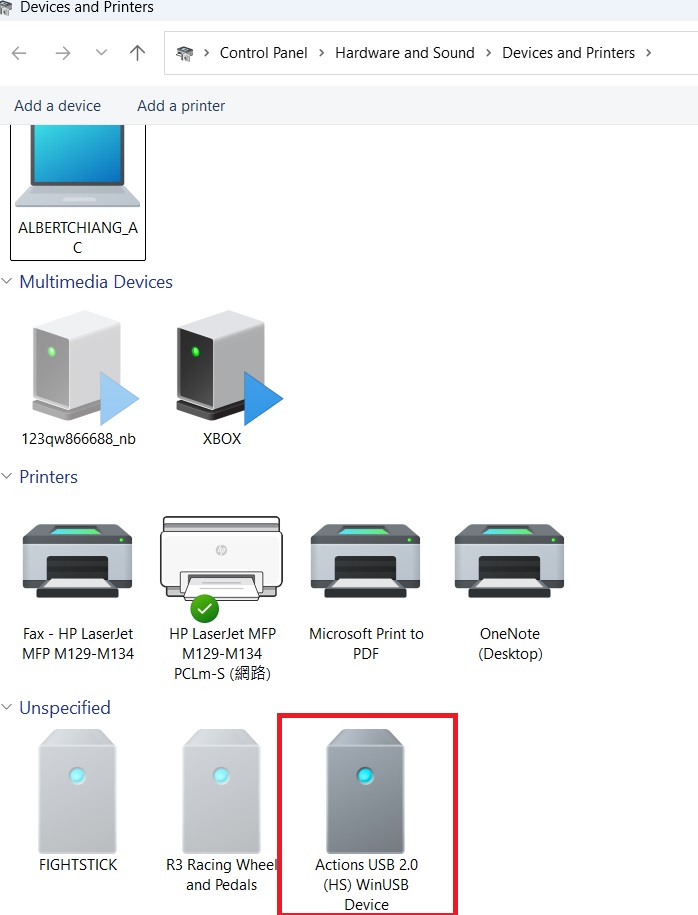
A: Use a pin (e.g., paper clip) to press the RESET hole on the back. Make sure the device “Actions USB 2.0 (HS) WinUSB " Device in Device and Printer.
Run the firmware update again.
https://drive.google.com/file/d/1bdHoBiBuzYhoMcNb76Rx2CuefK3ZqG4t/view?usp=drive_link
Can't Find What You Need?
If none of the situations apply to you, contact your local distributors who will help you troubleshoot or fill out a technical support form so that we can help you find the best solution.



3F., No.121, Jian 8th Rd., Zhonghe Dist., New Taipei City 23585, Taiwan
Tel: +886-2-6620-2225 #361|Fax: +886-2-6620-2226|Business Hours: 10:00 AM to 6:00 PM (GMT+8)