-
Q1.Compatibility - Wingman P5s
Q: How do I know if the converter is compatible with my stick ?
A : Before purchase, you can log on to Brook’s official website to see if your controller/stick is listed in the compatibility list. Compatibility list is in the product introduction page.
The list indicates the stick that have been tested to be compatible with the converter.
For those controller/stick which are not listed may be incompatible or not be tested yet.
You can go to Contact us for assistance or suggestion.
Or, you may search over the internet for other players’experience.
Q : My stick is listed as compatible in the compatibility list, but there's no respone when I use it.
A : Connect Wingman P5 to other USB port.
B : Switch to other (PS3/PS4/X-Input) or 2.4 G dongle (X-Input) mode on controller and retry.C : Try to do firmware update on both converter and controller.
D : Use other controller to see if the situation persists.If it doesn't help, please contact us for further assistance.
-
Q2.Firmware Update - Wingman P5s
Q: I don’t know how to do firmware update, how can I do?
A: There's firmware update guide for you to download and read.
You can download it from Brook's official website.
Go to “Download”
Brook's official website for firmware upadte page:
https://www.brookaccessory.com/BrookUpdate/index.html
Q : I have some problem with firmware update.
A : Should you have any problem, please try the troubleshooting methods as below :
a. Make sure it recognizes " WPM USB " device (update mode) in Device and Printers on PC then to do firmware update.
b. Make sure you download the correct file.
c. Switch another USB port and retry.
d. Disable antivirus and retry.
e. Run the program as administrator.
f. Restart PC and retry.
g. Restart firmware updater and retry.
h. Use another PC and retry.
i. Disconnect, reconnect and retry.
j. Use other network.
k. Shorten cable length/Use another cable and retry.
l. If you have installed ZeroPlus Driver before, remove it and retry.
m. Use VPN and retry.If you have tried all the methods above and your problem still exists, log on to Brook's official website, go to “Contact us” for assistance.
Q : I try to update the firmware for my converter , It keeps giving me the message
" Downlaod file failed " and "The remote server returned an error: 227 " , What can i do ?
A :
Download the offline firmware verssion , then update again.
Unzip password : Brook
https://drive.google.com/drive/folders/1hjnGLOlFfd2EFrDj-l8fPWTbBKtrhd4v?usp=drive_link
-
Q3.Defective - Wingman P5s
Q : My converter used to work perfectly, but now it doesn’t seem to work anymore, it seems to be defective.
Please try the troubleshooting methods as below:
1. Make sure you have followed a firmware update guide to do firmware update first.
2. Make sure the converter LED is on when it is plugged in Console/PC.
3. Switch another USB port and retry.
4. Use other fighting sticks/controllers and retry.
5. Switch other mode (X360/PS3/PS4/PC) on fighting sticks and retry.
6. Connect the converter to PC with fighting sticks, then press buttons in Device and Printers, and then press the button to make sure it functions properly.
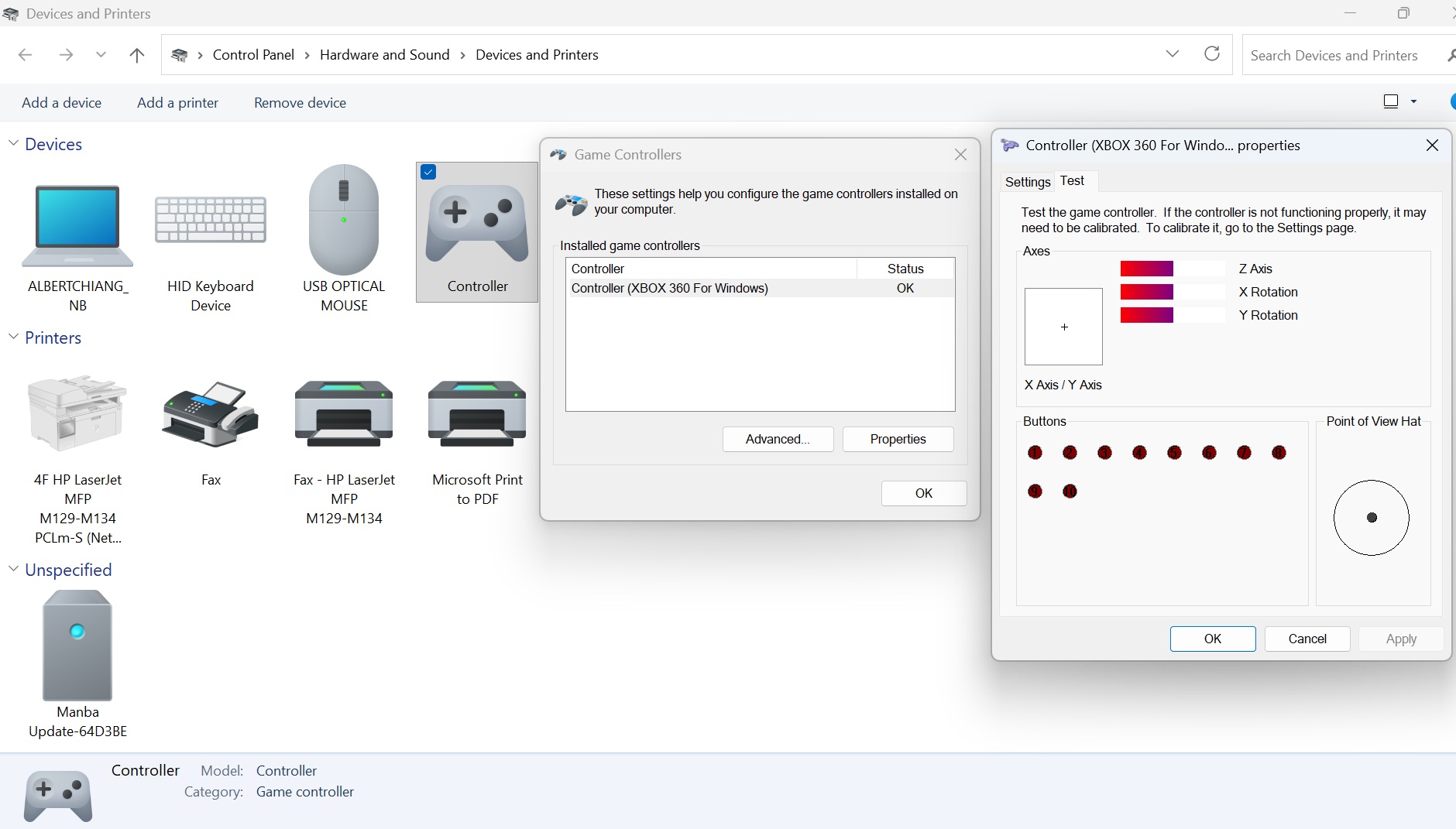
If it doesn't help, please contact your original place of purchase for assistance.
For further assistance, please log on to Brook's official website, go to“Contact us", and leave your message, we will contact you soon.
-
Q4.Other Technical Questions - Wingman P5s
Q : When i use a Sony Dualshock 4 on PS5, i can’t find the TOUCHPAD PRESSURE function when using it with PS5 games.
I tried L3+R3 but it doesn’t work, what can i do?1.Turn on the the Touch Pad to mode1 and sync to settings to converter in Brook Converter Center.

2. Set the Use USB Cable in PS5 settings.
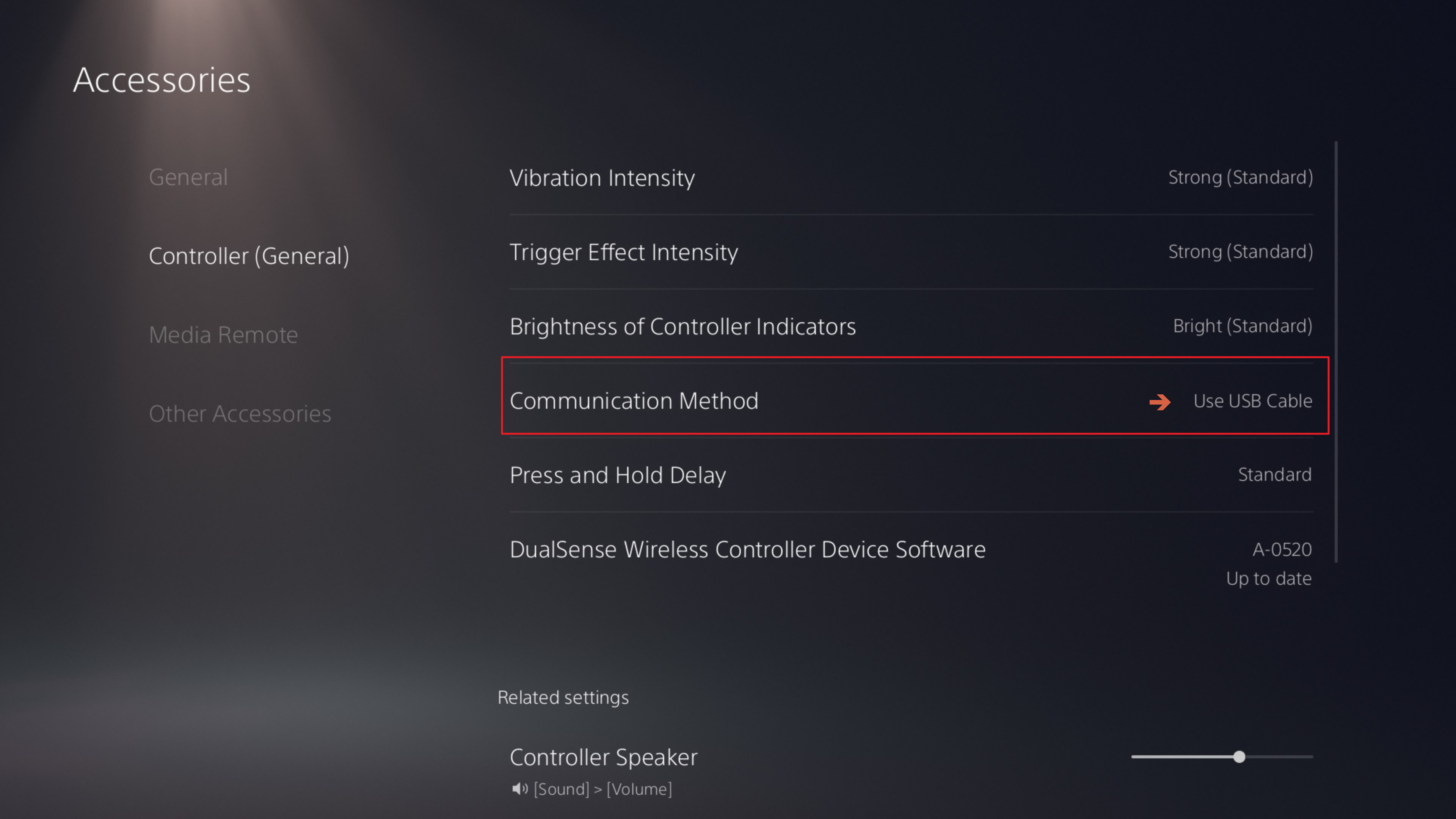
The Mode will be saved after switching.
1. PS + Up : PS5 Mode.
2. PS + Left : PC Mode.
3. PS + Right : PS4 Mode.
4. PS + Down : Auto Mode.
Q: How can I manually and quickly clear Remap/Macro/Turbo and resolve touchpad TP key and controller no vibration ?
A: After connecting the controller to the Wingman P5, simultaneously press the corresponding Create + Option + PS buttons on the controller (about 2-3 seconds). The Wingman P5 will then light up yellow light, indicating that the settings have been reset.
Q : While using it, the touch mode sometimes changes to mode 2. Hhow to change the touch mode directly on the controller?
Manual switching mode:
View + LSB = Mode 1
View + RSB= Mode 2
Q: Why does my camera screen spin or drift in Apex Legends even when no controller is connected to the Wingman P5s?
A: This behavior is caused by the specific game settings and deadzone mechanics of Apex Legends, rather than a hardware defect of the Wingman P5s.
When your game settings are configured with the response curve set to "Linear" and the look deadzone set to "None", the game becomes extremely sensitive. It amplifies even the most microscopic fluctuations around the analog stick's neutral center. Consequently, even when no physical controller is plugged into the converter, the game detects the tiny baseline signal variance as continuous camera movement, resulting in a drift or spinning effect.
How to Resolve:
-
Method 1 (Recommended): In the Apex Legends controller settings, slightly increase the "Look Deadzone" from "None" to a small value (e.g., "Small") until the camera stops drifting.
-
Method 2: If you prefer using Linear response curves, you can switch to "Advanced Look Controls (ALC)" and manually adjust the deadzone value slightly above 0 to stabilize the neutral center without compromising your aiming precision.
Q : My PS4 controller suddenly stopped pairing wirelessly via the adapter , What should I do?
- A: Please first re-pair your PS4 controller with your PS4 console wirelessly (reset the PS4 controller’s Bluetooth). Once that’s done, pair it wirelessly with the Wingman P5. Make sure your PS4 controller is fully charged.
-
Can't Find What You Need?
If none of the situations apply to you, contact your local distributors who will help you troubleshoot or fill out a technical support form so that we can help you find the best solution.



3F., No.121, Jian 8th Rd., Zhonghe Dist., New Taipei City 23585, Taiwan
Tel: +886-2-6620-2225 #361|Fax: +886-2-6620-2226|Business Hours: 10:00 AM to 6:00 PM (GMT+8)