-
Q1.Compatibility - Sniper 2
Q : How do I know if Sniper 2 is compatible with my mouse/keyboard ?
A : Before purchase, you can log on to Brook’s official website to see if your mouse/keyboard is listed in the compatibility list.
The list indicates the controller/stick that have been tested to be compatible with the converter.
For those controller/stick which are not listed may be incompatible or not be tested yet.
You can go to Contact us for assistance or suggestion.
Or, you may search over the internet for other players’ experience.
Q : My mouse/keyboard is listed as compatible in the compatibility list, but there's no respone when I use it.
A :
1. Please try to do firmware update firstly.
2. Besides, make sure whether your keyboard/mouse has any special mode or not. For example, some keyboards need to be switched to bios mode to use.
3. Please connect an external 5V power supply to sniper 2.4. If it doesn't help, please contact us for further assistance.
-
Q2.V2.3 Update Function Problem - Sniper
Q : What has been added/ updated with the latest V2.3 firmware?
A:
- [Expert Setting] is added in the version, which allows player to do more advanced mouse settings.
Q : How do I do the settings with the latest V2.3 update?
A:
The method below is suggested way in general situation, you can also do your preferential setting.
- 1. In the game you play, if there's an option for you to set the sensitivity of mouse, set it to maximum.
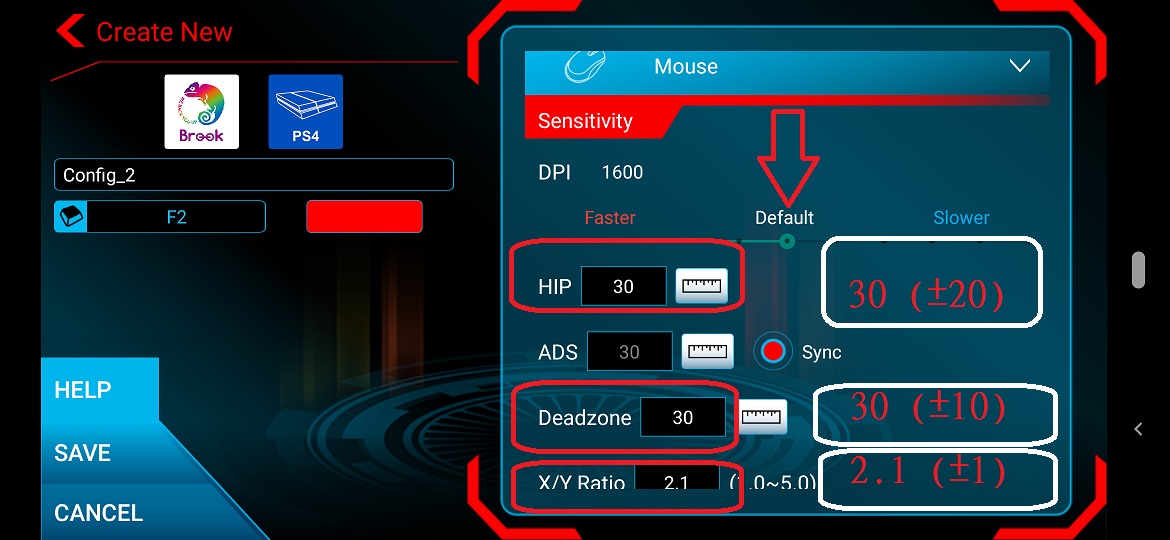
- 2. Normal Setting > Mouse (the value in white square is suggested value )
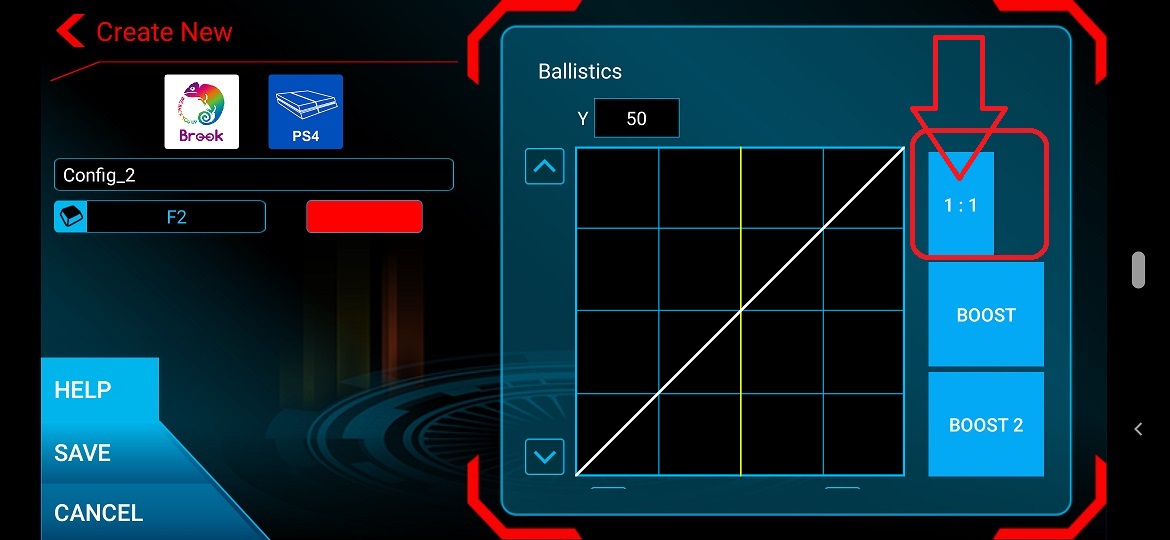
- Suggest 1:1 for Ballistics
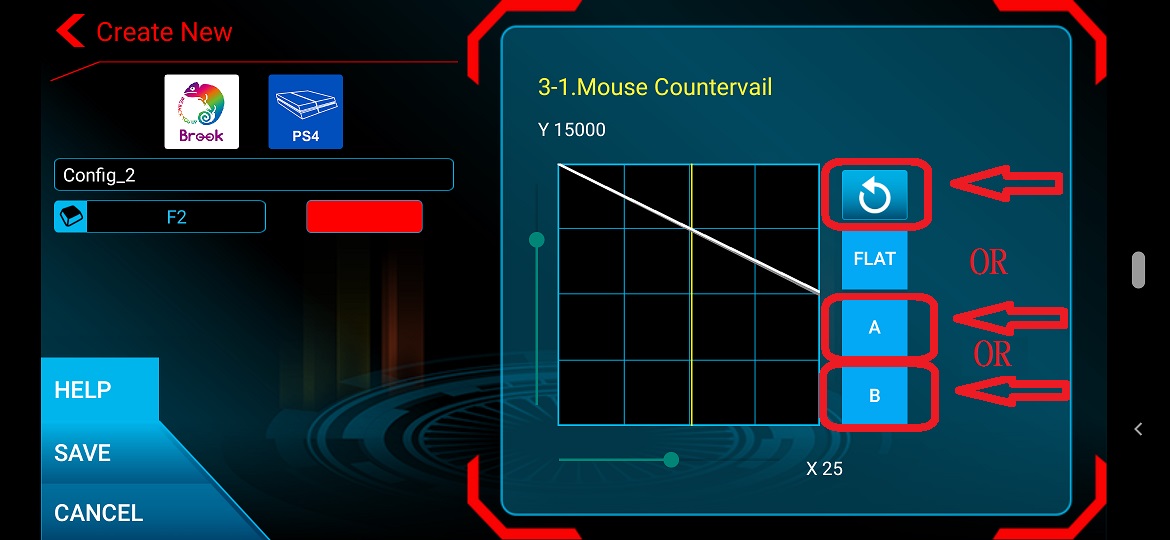
3. Move on to [Mouse Advanced+] to set Mouse Countervail, you can set it on the left, or simply choose the 3 default configs
in the red squre.
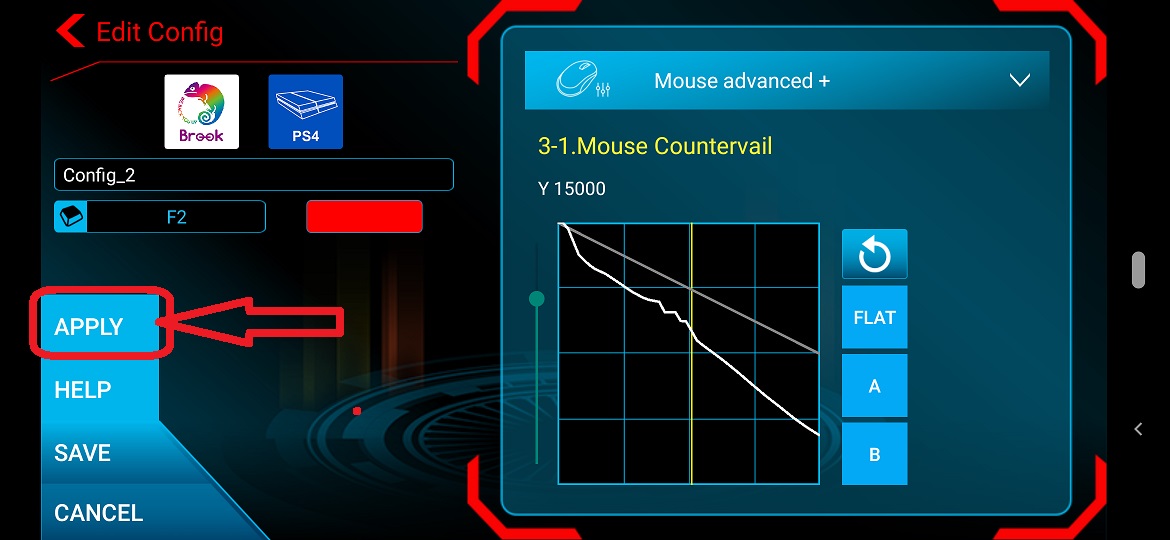
An [Apply] button will show up after you do the setting, press apply to try, if it's good for you, press [SAVE] to save
the changes, and [Load] it to Sniper to use
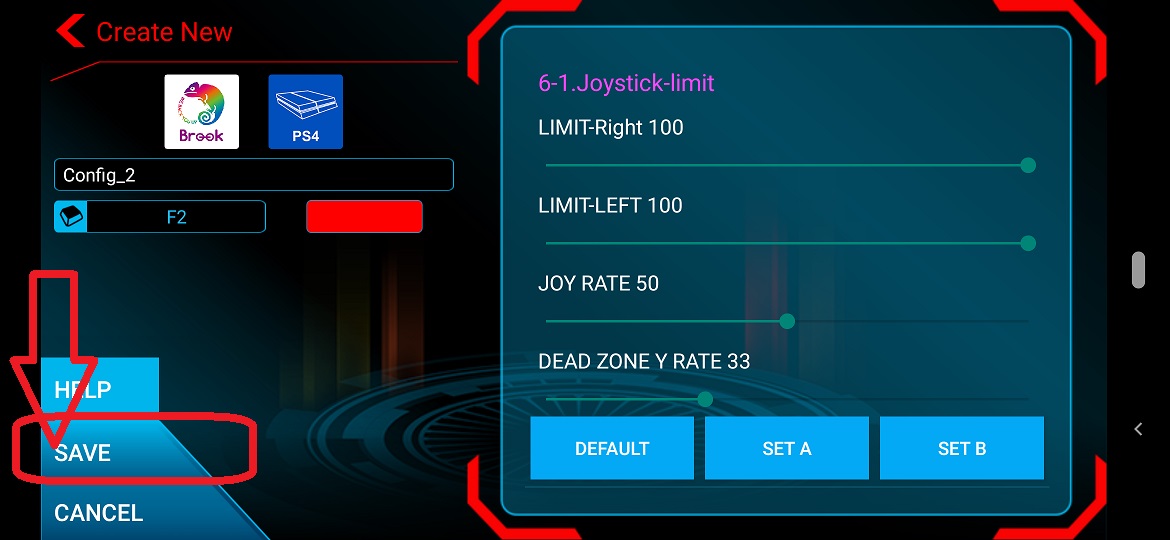
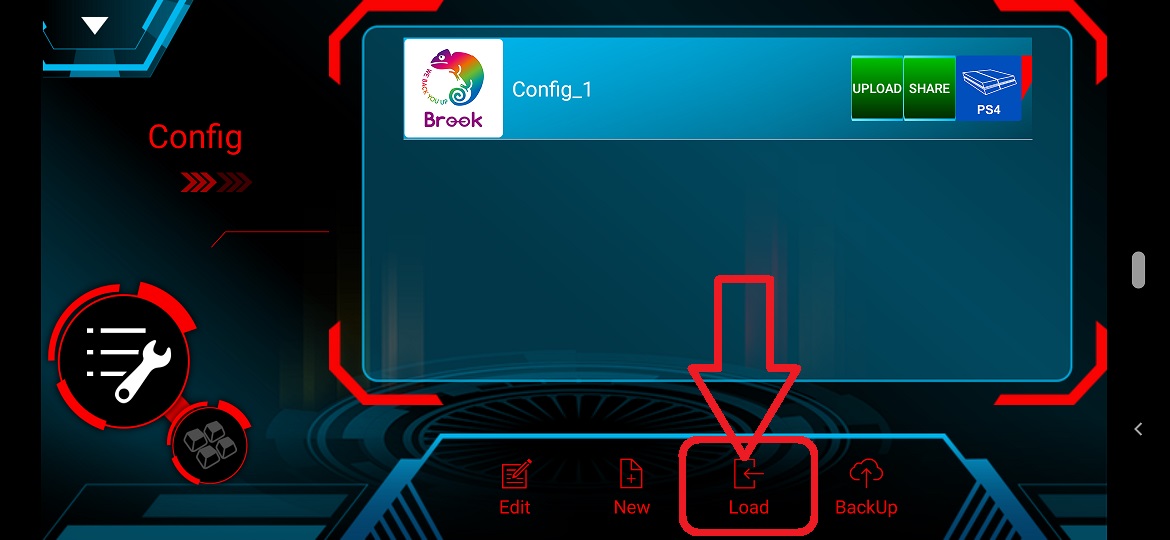
Basically, you just need to do the settings above.
If the settings above can't meet your need, you can move on to set the other settings.
The graphs below is the suggested further settings.
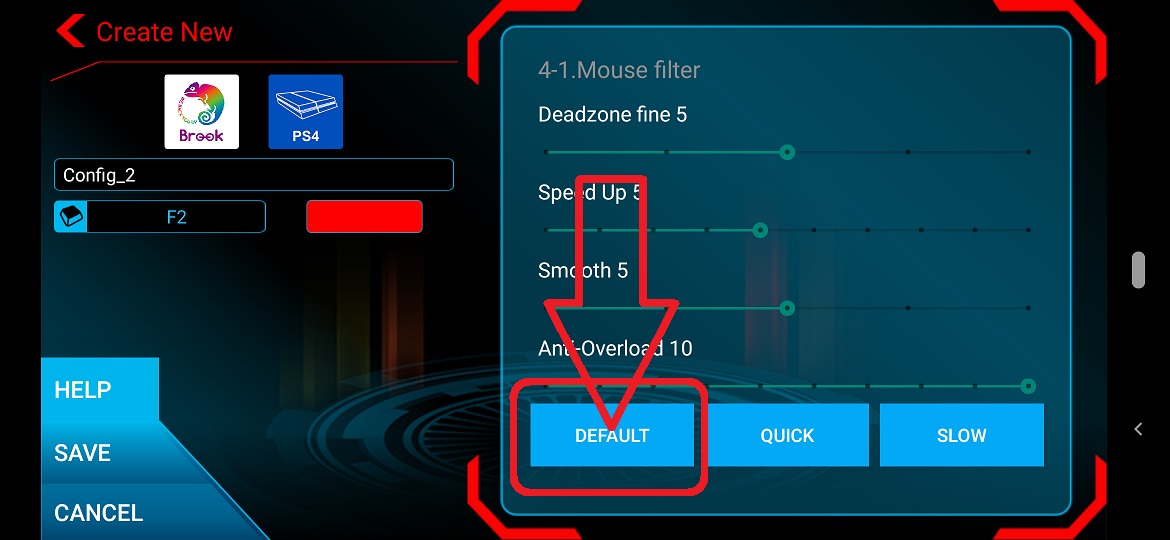
For settings in [Mouse Advanced] , just choose the default setting.
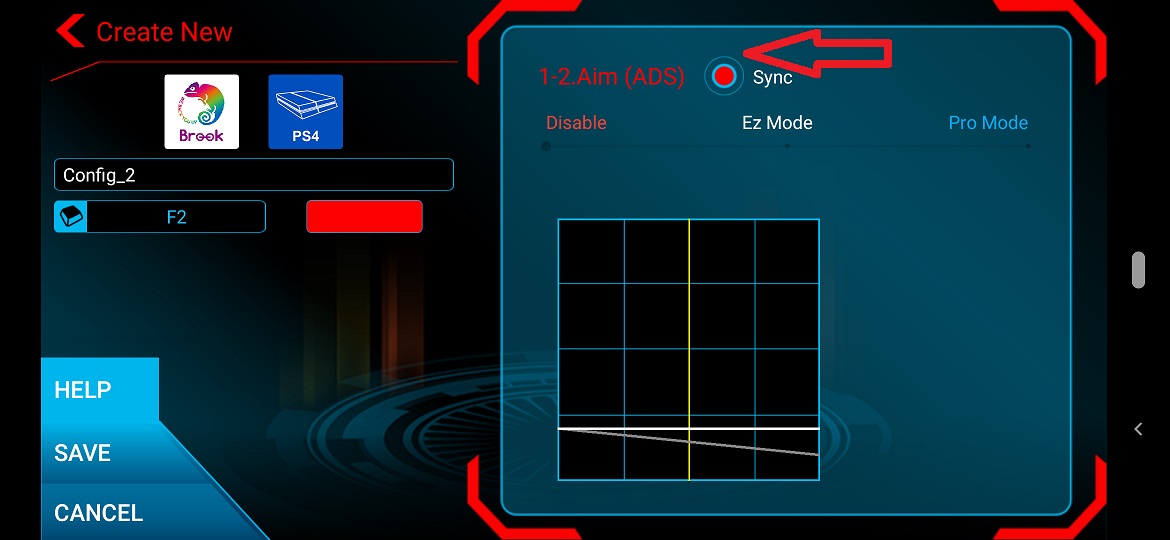
1.1 Aim, the button in red square is default
Sync with 1.1 Aim
2.1 Turn Around, the button in red square is default
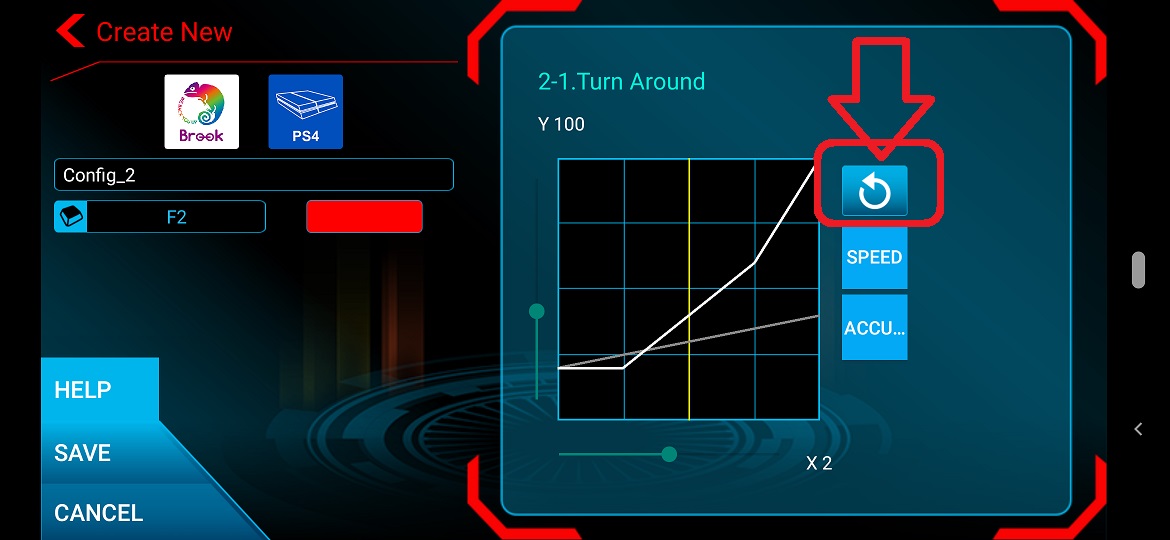
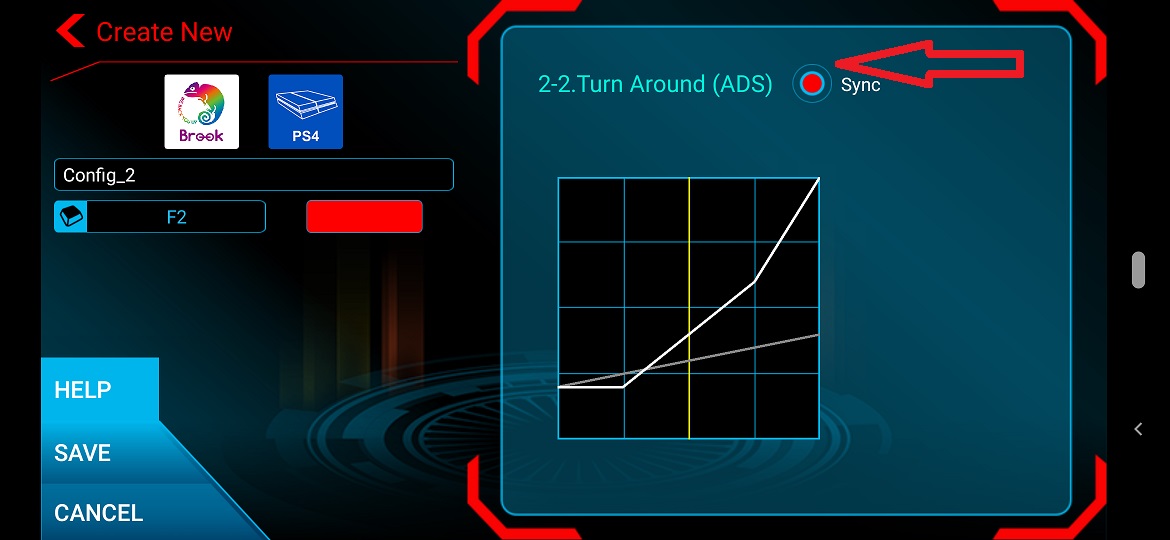
Sync with 2.1 Turn Around
For settings in [Mouse Advanced+] , just choose the default setting as well.
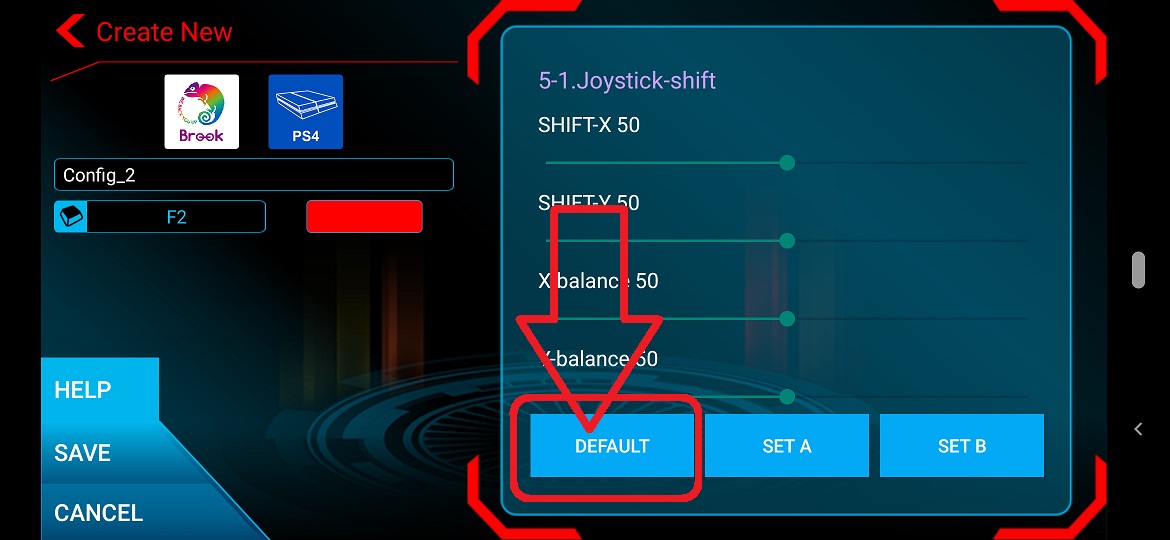
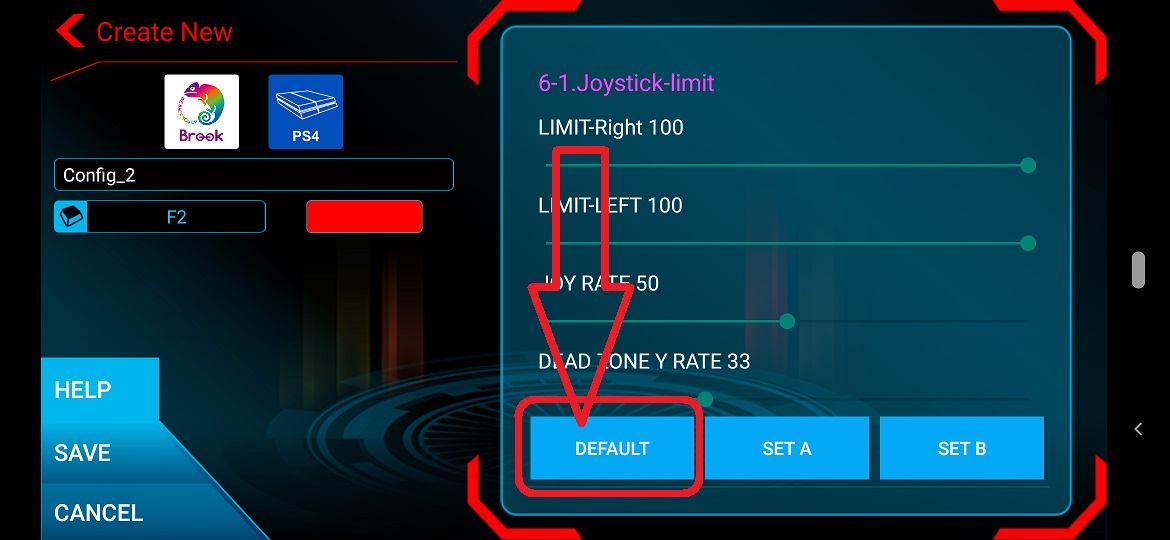
Finally, remember to press [SAVE] to save the changes, and [Load] it to Sniper to use
-
Q3.Firmware Update - Sniper 2
Q: I don’t know how to do firmware update, how can I do?
A: There’s firmware update guide for you to download and read.
You can download it from Brook’s official website.
Go to “Download”
Brook’s official website download page: http://www.brookaccessory.com/download/
Q : I have some problem with firmware update.
A : Should you have any problem, please try the troubleshooting methods as below :
- 1. Disconnect, reconnect and retry
- 2. Switch another USB port and retry
- 3. Use another PC and retry
- 4. Restart PC and retry
- 5. Restart firmware update and retry
- 6. Use another controller and retry
- 7. Shorten cable length/Use another cable and retry
- 8. Make sure you download the correct firmware update file
- 9. If you have installed ZeroPlus Driver before, remove it and retry
- 10. Disable antivirus and retry
- 11. Run the program as administrator
If you have tried all the methods above and your problem still exists, log on to Brook’s official website, go to Contact us for assistance.
Q : Do I need to do firmware update if there's new release ?
A : Yes.
Also, please update your Sniper APP.
Q : What should I pay attention to for firmware update ?
A:
- 1. Firmware update must be done on a PC, it cannot be done on a console.
- 2. Operate it on desktop PC. For laptop, please connect your laptop to power supply.
- 3. Do it on Windows 7(and above) or Mac.
- 4. Disable antivirus when operating.
- 5. Don’t remove the converter while update is running.
- 7. Make sure the PC has smooth internet stream
-
Q4.Firmware Update - Sniper
Q: I don’t know how to do firmware update, how can I do?
A: There’s firmware update guide for you to download and read.
You can download it from Brook’s official website.
Go to “Support è Download”
Brook’s official website download page: http://www.brookaccessory.com/download/
Q : I have some problem with firmware update.
A : Should you have any problem, please try the troubleshooting methods as below :
- Disconnect, reconnect and retry
- Switch another USB port and retry
- Use another PC and retry
- Restart PC and retry
- Restart firmware and retry
- Use another controller and retry
- Shorten cable length/Use another cable and retry
- Make sure you download the correct file
- If you have installed ZeroPlus Driver before, remove it and retry
- Disable antivirus and retry
- Run the program as administrator
If you have tried all the methods above and your problem still exists, log on to Brook’s official website, go to “Contact us” for assistance.
Q : Do I need to do firmware update if there's new release ?
A : Yes.
Also, please update your Sniper APP.
Q : What should I pay attention to for firmware update ?
A:
- Firmware update must be done on a PC, it cannot be done on a console.
- Operate it on desktop PC. For laptop, please connect your laptop to power supply.
- Do it on Windows 7(and above) or Mac.
- Disable antivirus when operating.
- Don’t remove the converter while update is running.
- Make sure the PC has smooth internet stream
-
Q5.Defective - Sniper 2
Q : My Sniper used to work perfectly, but now it doesn’t seem to work anymore, it seems to be defective.
A:
- 1. Please make sure you have followed firmware update guide to do firmware update first.
- 2. Check if there's any change to your gamimg environment.
- 3. Ensure that the converter's LED indicators and screen light up when connected to the console or PC. If only the purple LED at the lower-left corner of the front panel is lit, please update the firmware again using a wired connection.
- 4. Make sure you are using the usb cable from Brook, and it should be plugged with the main head
- 5. Make sure your Sniper APP is the latest version.
- 6. Contact your original place of purchase for assistance.
7. Connect the Sniper 2 to a PC along with an original XBOX controller, then press buttons in "Devices and Printers" to ensure it functions properly.
Note: If you wish to use other controllers for testing, please remember to press the key combination Ctrl(L)+Alt(L)+F3 before proceeding with the test.
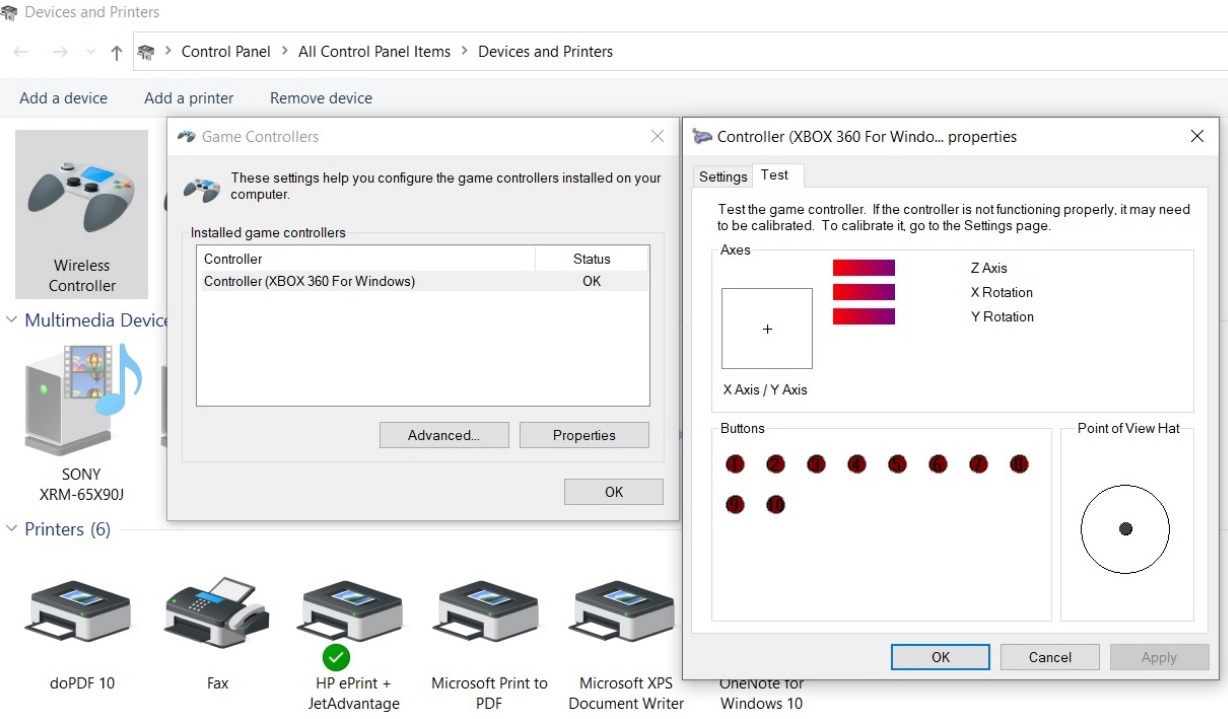
- For further assistance, please log on to Brook's official website, go to Contact us, and leave your message, we will contact you soon.
-
Q6.Defective - Sniper
Q : My Sniper used to work perfectly, but now it doesn’t seem to work anymore, it seems to be defective.
A:
- Please make sure you have followed firmware update guide to do firmware update first.
- Check if there's any change to your gamimg environment.
- Make sure the Sniper LED is on when it is plugged to console/PC.
- Make sure you are using the usb cable from Brook, and it should be plugged with the main head
- Make sure your Sniper APP is the latest version.
- Contact your original place of purchase for assistance.
- For further assistance, please log on to Brook's official website, go to“Contact us", and leave your message, we will contact you soon.
-
Q7.Other Usage Precautions - Sniper 2
Q: What are the necessary settings before playing with Sniper 2?
A:
1. In-Game Settings: When using Sniper 2 in-game, if there is an option for joystick/view sensitivity, please set it to the highest level to ensure the best gameplay experience
. 2. Connecting to a PS5 Console: To connect Sniper 2 to the PS5 console, make sure to set the PS5 controller communication method to "USB Cable" to ensure a successful connection
. Path: Settings --> Accessories --> Controller --> Communication Method --> Use USB Cable
.
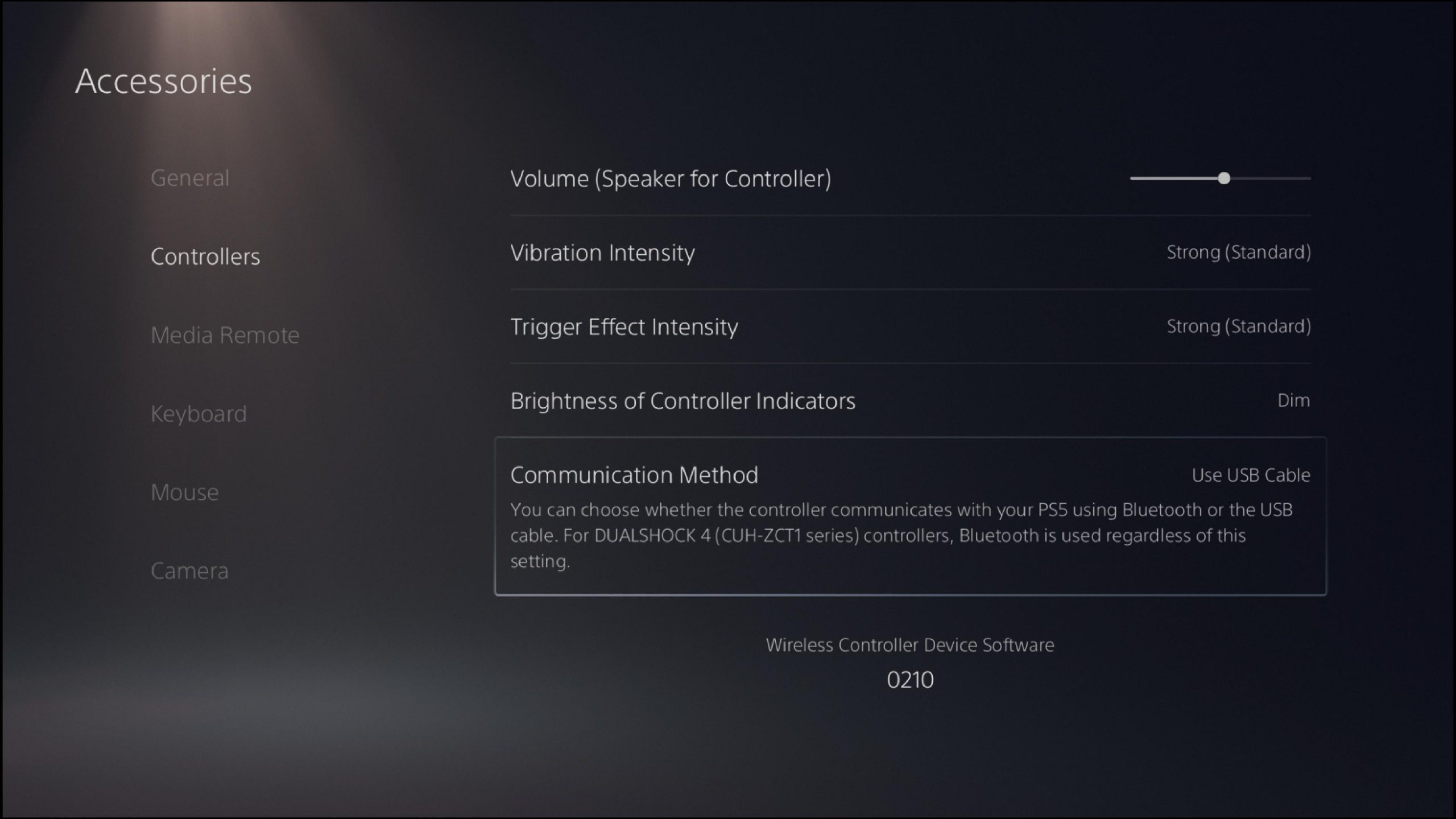
3. Connecting to an Xbox Console: To play on an Xbox console, be sure to connect an official Xbox controller for authorization
. If an official controller is not connected, the device will not function properly . 4. Connecting to a Switch Console: To connect Sniper 2 to the Switch console, make sure the Pro Controller Wired Communication setting is set to On to ensure a successful connection using a USB cable
. Path: Settings > Controller & Accessories > Pro Controller Wired Communication (On)
.
.jpg)
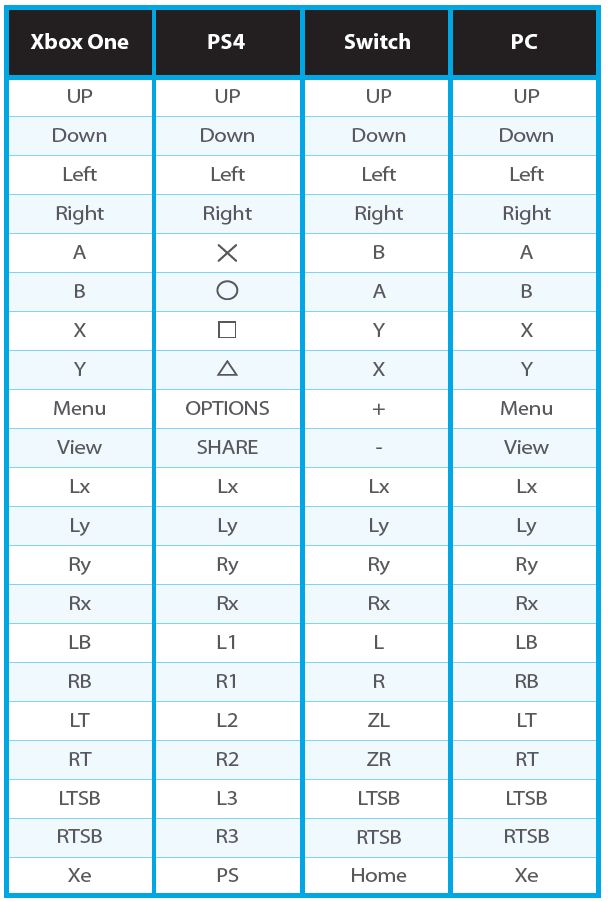
Q: What should I do if the device does not function when connected to a game console or PC?A: Please manually switch to the corresponding console mode
. Connect a keyboard to Sniper 2 and press the following console switching hotkeys :
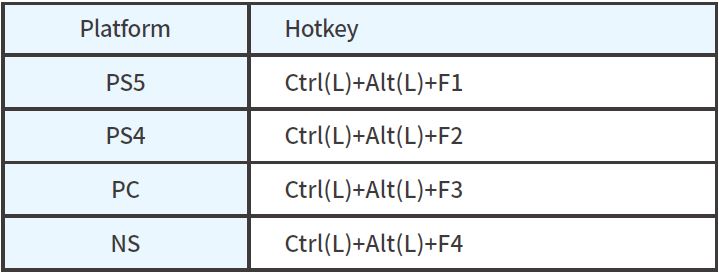
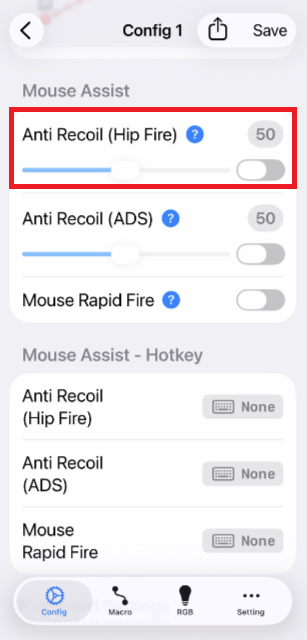
Q: I am using Sniper 2 with Nintendo Switch 2. When I assign ZR to the left mouse button, pressing the left mouse button causes an unintended downward input on the right stick at the same time,What can I do ?
A : This setting is intended for use in shooting games. If you don't need this feature, you can turn the Recoil Reduction (Hip Fire) off.
-
Q8.Compatibility - Sniper
Q : How do I know if Sniper is compatible with my mouse/keyboard ?
A : Before purchase, you can log on to Brook’s official website to see if your mouse/keyboard is listed in the compatibility list.
http://www.brookaccessory.com/sniper/compatibility.php
The list indicates the controller/stick that have been tested to be compatible with the converter.
For those controller/stick which are not listed may be incompatible or not be tested yet.
You can go to Contact us for assistance or suggestion.
Or, you may search over the internet for other players’ experience.
Q : My mouse/keyboard is listed as compatible in the compatibility list, but there's no respone when I use it.
A : Please try to do firmware update firstly.
Besides, make sure whether your keyboard/mouse has any special mode or not.
For example, some keyboards need to be switched to bios mode to use.
If it doesn't help, please contact us for further assistance.
Can't Find What You Need?
If none of the situations apply to you, contact your local distributors who will help you troubleshoot or fill out a technical support form so that we can help you find the best solution.



3F., No.121, Jian 8th Rd., Zhonghe Dist., New Taipei City 23585, Taiwan
Tel: +886-2-6620-2225 #361|Fax: +886-2-6620-2226|Business Hours: 10:00 AM to 6:00 PM (GMT+8)