-
Q31.Other Technical Questions - Wingman XB 2
Q : What's the difference between this product and XB?
A : Wingman XB 2 supports to used Xbox Bluetooth controller wirelessly, while Wingman XB doesn't support wireless use.
Q : If I buy DualShock 3, will on Xbox Original support keys sensitive to the pressure?
A : The pressure sensitivity function is not supported when you use PS3 controller.
-
Q32.Other Technical Questions - Wingman PS2
Q : Does it work with wireless controllers ?
A : Yes, it does.
Q : There's no response at all when I use the converter on PS2.
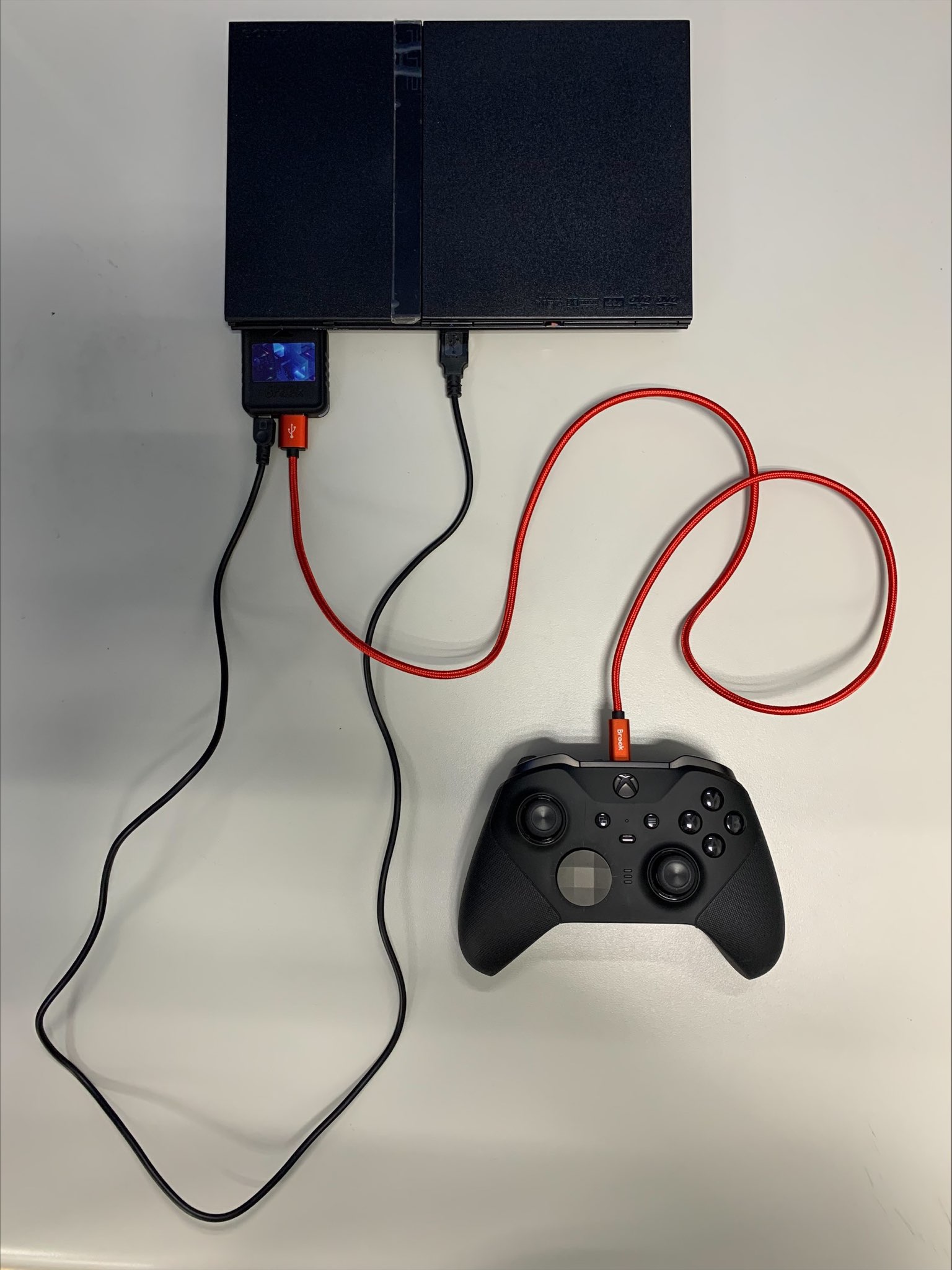
A : Please get another micro usb cable, plug it to Wingmn PS2.
For the other side of the cable, please plug it to the usb port on PS2 to supply additional power to the converter.
Q : How to switch to Xinput?
A : When Wingman PS2 is connected to PC, and the controller is connected to Wingman PS2, you can switch to Xinput by holding down SELECT + Dpad Down for about 2 seconds.
To switch back to PS classic mode (default mode), hold down SELECT + Dpad Up for about 2 seconds, or just unplug the converter, and plug it back to PC/console.
Q : My PS2 hard disk would eject itself when powering on the console
A : Please fill out the technical support form for assisance.
https://www.brookaccessory.com/rma/rma_form_global.php
Q : My PS1 would reset
A : Please fill out the technical support form for assisance.
https://www.brookaccessory.com/rma/rma_form_global.php
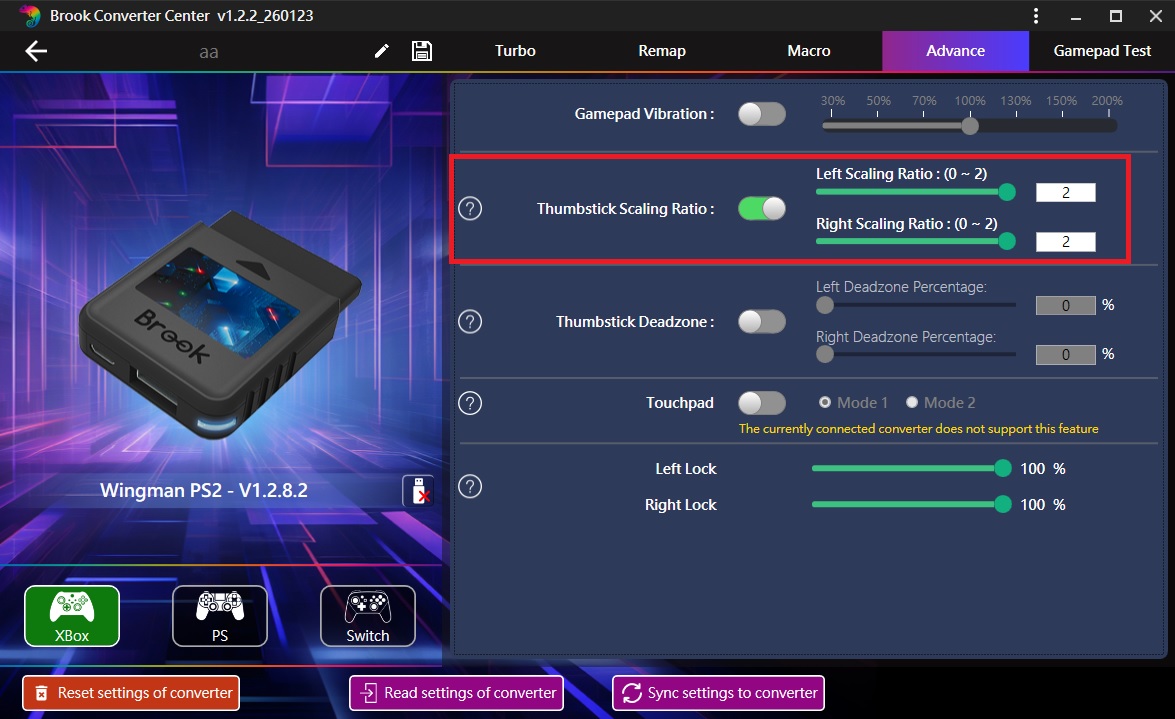
Q : When I move my analog stick up and diagonally to the left my character walks instead of running ,what can i do?
A :
Press combo key at same time.
Select + Square (X) = 3DVR magnification ON
Select + Circle (B) = 3DVR magnification OFFOr Turn on Thumbstick Scaling Ratio in Brook Converter Center.
Q : Does it work with the tankstick?
A :
It's compatible with tankstick, and need to X-Arcade Playstation 3 + Original Xbox Adapter (PS3 mode).
https://shop.xgaming.com/products/x-arcade-playstation-3-xbox-1-adapter-2in1
Q : Can I use Qanba 2009 Arcade with Wingman PS2 on my PS1/PS2?
A : Yes, you can.
-
Q33.Other Technical Questions - Wingman SNES
Q : The game I am playing frequently uses select ("SHARE ") while pressing other buttons quickly after.
I keep accidentally placing the controller into fighting stick mode.
Is there any way to disable this mode change?
A :
Update the beta v1.3.6 version.
https://drive.google.com/file/d/18lyZuGfgv1lSlNr8hsOkljU-oOsgnOZa/view?usp=drive_link
Press combo key for 3 second , you can switch to Fighting Stick mode
Press Share+Options + ○ = Joystick mode 1
Press Share+Options+ ╳= Joystick mode 2
Press Share+Options+ △= Joystick mode 3Q : Why my Xbox One controller can't use the wireless connection?
A :
Due to update of the Xbox Bluetooth controller changes the Bluetooth from Classic to BLE,
the Wingman SNES doesn’t support Bluetooth mode with Xbox one controller.
However, there’s one work around you can try.
https://youtu.be/U9cAIM9svEwQ : Why can't I recognize the SELECT button when I use Wingman SNES to connect to Zero Pi Fighting Board?
A :
Please switch the Zero Pi Fighting Board to PS3 mode (press and hold 1P to connect) to allow the Wingman SNES to recognize the SELECT button.
-
Q34.Other Technical Questions - Wingman SD
How do I make 240 blocks of DC memory?
A :
2 Execute Brook_Dreamcast_VMU_SL_Tool_202011112.exe
4 Click [Load from PC]
6 Loading(it may take some time for loading, and it looks like it’s stuck, just wait for it)
There's no response at all when I use the converter on Saturn and Dreamcast
A : Please try to use another usb cable to connect the converter to a 5V power source to offer additional power.
The power Saturn offers may be insufficient to make it properly work.
How do I switch the input mode on Saturn and Dreamcast?
A :
On Saturn :
Switch to “3D Control mode”:
Press VIEW + Y, the Console Green LED is permanently on.Switch to “Standard mode”:
Press VIEW + A, the Console Red LED is permanently on.Switch to “Arcade mode”:
Press VIEW + B, the Console Red LED and Green Led are permanently on.On Dreamcast :
Switch to “Gamepad mode”:
Press VIEW + Y, the Console Green LED is permanently on.Switch to “Arcade Stick mode”:
Press VIEW + A, the Console Red LED is permanently on.Q : What is the 8bitdo m30's controller button mapping?
A :

Q : Can I use Qanba 2009 Arcade on my taito egret mini console?
A : Yes, you can.
Q : Is there a way to adjust the deadzone, acceleration and sensitivity?
A :
Select+Dpad Down= OFF
Select+Dpad Up = Magnification 1
Select+Dpad Left = Magnification 2Q : Can i use Qanba 2009 with Wingman SD?
A :
The Wingman SD is compatible with Qanba2009.
1P :
https://drive.google.com/file/d/19rQPSX-q1PDPiq3XzZwRasee2HHlXtCf/view?usp=drive_linkFor 2P :
If you are using two Wingman SD, you need to connect a separate USB cable to the Qanba mainboard.
Cannot be used with Qanba 2009 USB output mode sliding switch.https://drive.google.com/file/d/1jkFdWgvVWi-9VJI_TzoaBEBp7VEnIewX/view?usp=drive_link
-
Q35.Other Technical Questions - Wingman NS
A : Wingman NS is the integration and upgrade version of the two converters mentioned above.
More information: https://www.brookaccessory.com/detail/81849027/
A :
- Connect the PS4 controller to PS4 wired, make sure it can be normally used.
- Disconnect the USB cable from PS4, and connect the PS4 controller wired to Wingman NS(Wingman NS on Switch dock already), make sure it can be normally used.
- Disconnect the USB cable from Wingman NS, wait for about 8-10 seconds, press the PS key on PS4 controller, it will connect wirelessly to Wingman NS
Note:If it cannot be normally used in the future, follow the steps abc again for troubleshooting
-
Q36.Other Technical Questions - Wingman XB
Q : Does it support to use on Xbox Series X|S?
A : Yes, it does.
Q : If I buy DualShock 3, will on Xbox Original support keys sensitive to the pressure?
A : The pressure sensitivity function is not supported when you use PS3 controller.
-
Q37.Other Technical Questions - Wingman XE
Q : Does it support to use on PS5?
A : Yes, but it's for PS4 games on PS5 only.
Q : Wingman xe turns off after 5 seconds when I inserted to PS3 , what can i do?
A : Use the wired controller and switch to PS3 mode. (Hold down PS + Right D-Pad buttons)
Q : Does the Wingman XE2 support Sixaxis or any kind of motion sensor functionalit
on PlayStation 3?
A : Yes , it can support.
The controller itself must have a 6-axis to match the 4-axis of the PS3 console. -
Q38.Compatibility - Wingman P5
Q: How do I know if the converter is compatible with my stick ?
A : Before purchase, you can log on to Brook’s official website to see if your controller/stick is listed in the compatibility list. Compatibility list is in the product introduction page.
The list indicates the stick that have been tested to be compatible with the converter.
For those controller/stick which are not listed may be incompatible or not be tested yet.
You can go to Contact us for assistance or suggestion.
Or, you may search over the internet for other players’experience.
Q : My stick is listed as compatible in the compatibility list, but there's no respone when I use it.
A : Connect Wingman P5 to other USB port.
B : Switch to other (/PS3/PS4/X-Iput) or 2.4 G dongle ( X-Iput ) mode on stick and retry.C : Try to do firmware update.
D : Use other sticks to see if the situation persists.If it doesn't help, please contact us for further assistance.
-
Q39.Compatibility - Wingman FGC Retro
Q: How do I know if the converter is compatible with my stick ?
A : Before purchase, you can log on to Brook’s official website to see if your controller/stick is listed in the compatibility list. Compatibility list is in the product introduction page.
The list indicates the stick that have been tested to be compatible with the converter.
For those controller/stick which are not listed may be incompatible or not be tested yet.
You can go to Contact us for assistance or suggestion.
Or, you may search over the internet for other players’experience.
Q : My stick is listed as compatible in the compatibility list, but there's no respone when I use it.
A : Connect Wingman FGC Retro to other USB port.
B : Switch to other (X360/PS3/PS4/PC) or 2.4 G dongle mode on stick and retry.C : Try to do firmware update.
D : Use other sticks to see if the situation persists.If it doesn't help, please contact us for further assistance.
-
Q40.Compatibility - Wingman FGC 2
Q: How do I know if the converter is compatible with my stick ?
A : Before purchase, you can log on to Brook’s official website to see if your controller/stick is listed in the compatibility list. Compatibility list is in the product introduction page.
The list indicates the stick that have been tested to be compatible with the converter.
For those controller/stick which are not listed may be incompatible or not be tested yet.
You can go to Contact us for assistance or suggestion.
Or, you may search over the internet for other players’experience.
Q : My stick is listed as compatible in the compatibility list, but there's no respone when I use it.
A : Connect Wingman FGC 2 to other USB port.
B : Switch to other (X360/PS3/PS4/PC) mode on stick and retry.C : Try to do firmware update.
D : Use other sticks to see if the situation persists.If it doesn't help, please contact us for further assistance.
Can't Find What You Need?
If none of the situations apply to you, contact your local distributors who will help you troubleshoot or fill out a technical support form so that we can help you find the best solution.



3F., No.121, Jian 8th Rd., Zhonghe Dist., New Taipei City 23585, Taiwan
Tel: +886-2-6620-2225 #361|Fax: +886-2-6620-2226|Business Hours: 10:00 AM to 6:00 PM (GMT+8)